Key Takeaways
- How to trim a video in bulk: open Toolbox → Edit → Video trimmer, add up to 20 videos, set a Start and End timecode for each file, and click Start trim.
- The trimmer re-encodes for a frame-accurate cut, so the clip begins exactly where you set it, with no frozen or black frames at the start. It is not a lossless copy.
- It cuts one start/end range per file. That suits you if you want to cut the beginning of a video, remove an intro from a video, or pull one segment out of a long file. It does not remove several segments from the middle.
- Typical jobs: stream intros, ads in recordings, one highlight from a long capture.
- It runs on your own Windows PC. Nothing is uploaded.
Why a fast cut can start on a frozen frame
Most video is stored as a few full “keyframes” with the frames in between described as changes from them. That is why a quick trim, which copies the existing streams without re-encoding, can only cut cleanly at a keyframe. The FFmpeg Seeking wiki explains the trade-off: a stream-copy cut is fast and loses nothing, but if your start point falls between keyframes, the result may not begin where you asked. Players can show a frozen or black picture until the next keyframe arrives.
The other route is to decode and re-encode the part you keep. It takes longer and is a new lossy generation, but the clip can start on any frame you pick. That is what people mean by a frame accurate cut.
VidFabs’ Video trimmer takes the second route. If you need a bit-perfect copy and can live with keyframe-only cut points, a stream-copy tool is the better fit. If you need the clip to start exactly at 00:00:12.500, re-encoding is the honest answer.
Trim the start and end of many videos, step by step
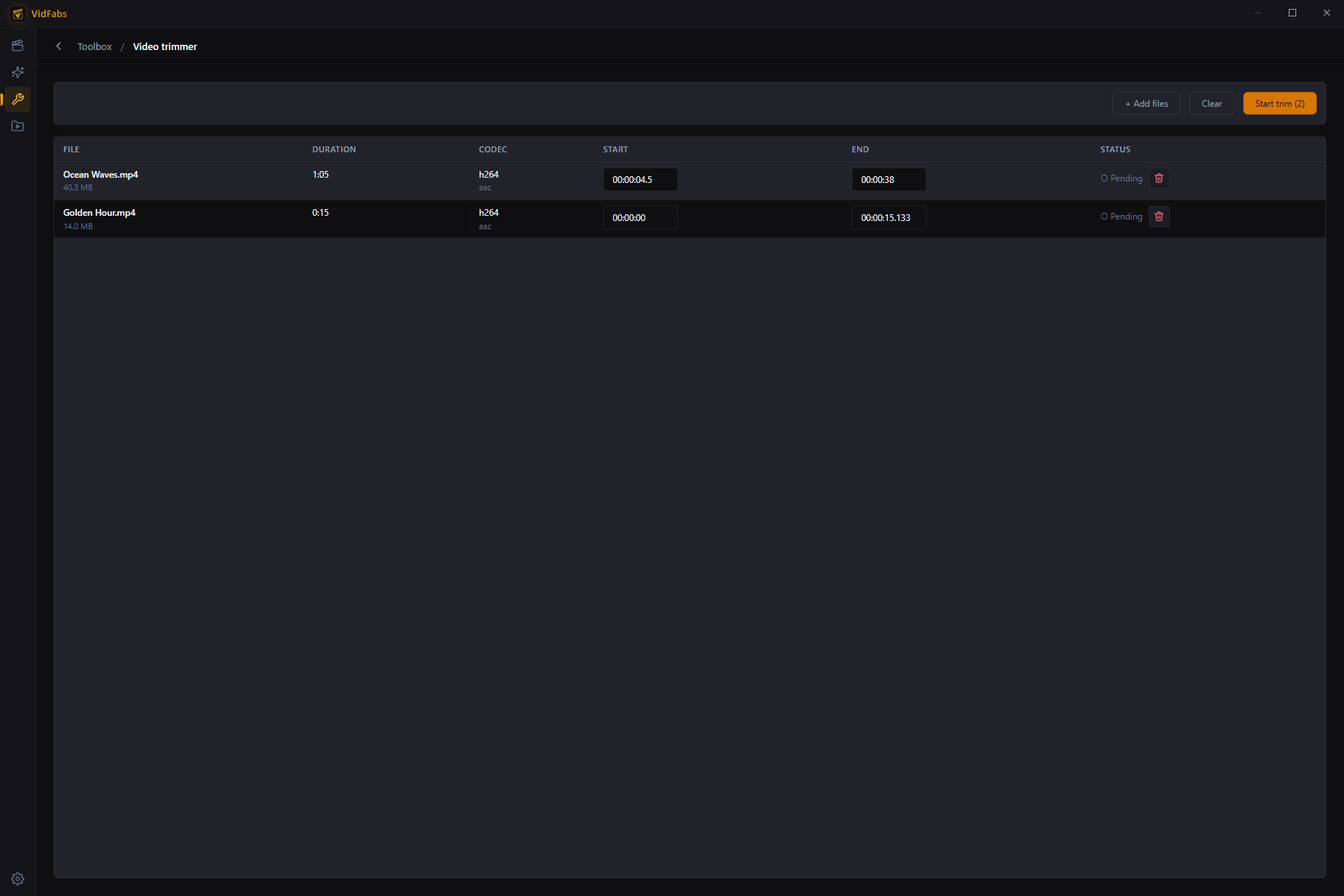
This is how to batch trim videos in VidFabs:
- Open Toolbox → Edit → Video trimmer.
- Add up to 20 videos.
- Set Start and End for each file. The defaults cover the whole video, so you only change the files you want to cut.
- Click Start trim. Output is re-encoded for frame-accurate cuts, and you can watch the live progress with an ETA.
Each file gets its own range, so a batch can mix different cuts: 8 seconds off one recording, 40 off another.
Common jobs
- Remove an intro from a video. Recorded streams often open with the same intro. Add all the recordings, set the same Start on each, and leave End at the default. This is also the quickest way to cut the beginning of a video you started recording too early.
- Cut ads out of recordings. When the ad sits at the head or tail of a recording, set Start or End to skip it.
- Extract one segment from a long file. Set both Start and End to keep just the part you need.
What the trimmer does not do
The trimmer keeps one range per file. If you need to cut something out of the middle of a video, or remove several sections, use the Pro Advanced editor instead: it has Split at playhead, and with Ripple on, deleting or trimming a clip closes the gap automatically. Pro and Windows only.
Tips for a clean result
- Trim before you merge. If clips have dead air at either end, cut them first, then join them with the steps in How to Merge Videos into One on Windows.
- Need only the sound? Trim first, then pull the audio track with the Audio extractor.
- Keep your originals. Output is a new re-encoded file, so repeated trims of trims add up. Cut from the original once.
The trimmer is one of the Toolbox batch tools introduced in What’s New in VidFabs, and it works like the rest: drop files, set parameters per file, start.
Get VidFabs
VidFabs is free on Windows 10 / 11 (64-bit), and the Toolbox tools, including the Video trimmer, are part of the free tier. The workflow is always the same: add, set Start and End, trim.
Download VidFabs for Windows. The macOS build is coming soon. Full tool reference: Trim, Merge & Audio Extract.