Key Takeaways
- To speed up a video without changing pitch, use a tool that time-stretches the audio instead of just playing it faster. In VidFabs that is Toolbox → Adjust → Speed: 0.25× to 4×, with pitch-corrected audio so voices don’t turn into chipmunks.
- Naive speed-up raises pitch because the audio is resampled: faster playback means higher frequencies. Pitch correction changes duration while keeping the pitch roughly where it was.
- The Speed tool shows the predicted output duration while you drag, and it works on a batch of up to 20 files at once.
- It is a constant speed setting only. There are no speed ramps or variable-speed curves, and no reverse playback.
- Slowing below 1× is not smooth slow motion. No motion interpolation is documented, so fast action can look choppy.
- It saves a new file, so you change the playback speed permanently in the export, not just in a player. Everything runs locally on Windows.
Why a fast video sounds like chipmunks
The simplest way to speed up a video is to play every frame and every audio sample faster. Video handles that fine: each frame is simply shown sooner. Audio does not. A sound wave played at 2× has twice as many cycles per second, so every note jumps up an octave and a voice sounds like a cartoon. Slowing down does the opposite: voices get deep and slurred.
Pitch correction (time-stretching) fixes this by rebuilding the audio so it lasts a different amount of time without moving the pitch. FFmpeg exposes this as the atempo audio filter, and its wiki page on how to speed up or slow down a video shows the video side (re-timing frames) and the audio side being handled separately and then kept in sync. That is the same idea VidFabs applies for you, using its bundled FFmpeg engine, so you don’t have to write filter chains.
How to speed up a video in VidFabs
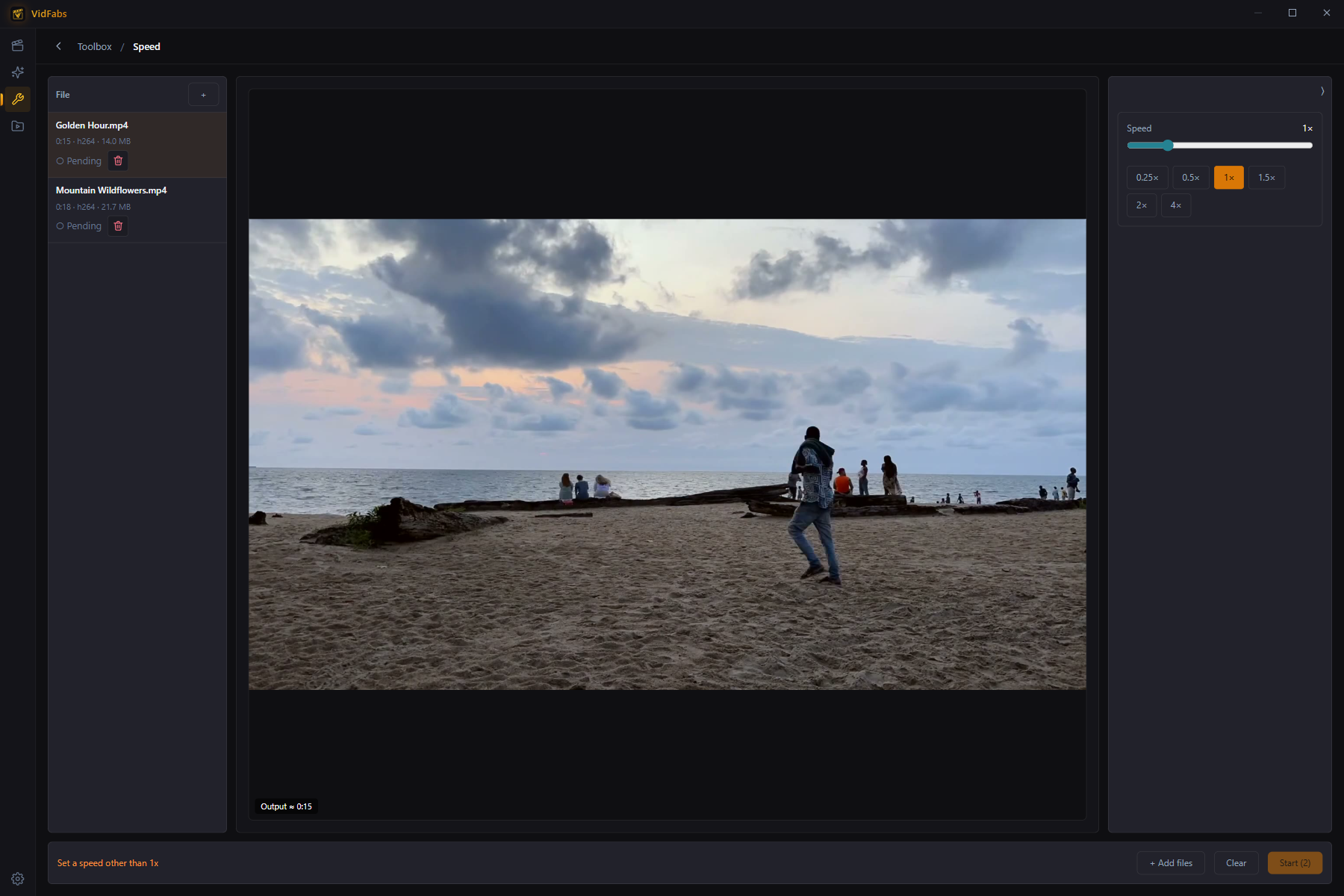
- Open Toolbox → Adjust → Speed.
- Add up to 20 files, then select one to preview it.
- Drag the speed between 0.25× and 4×. The tool shows the predicted output duration as you drag, so you can see that a 60-minute lecture at 2× becomes about 30 minutes before you commit.
- Apply the same setting to the whole batch. Each file shows its own status and a live ETA, and you can cancel the batch.
Video and audio stay in sync, and the audio is pitch-corrected. Because one setting applies to the whole batch, group clips that need the same speed: all the lecture recordings in one run, the footage you want slowed in another.
Common uses
- 2× lecture videos. Recorded lectures and screen recordings are often slower-paced than you need. At 1.5× to 2× you save time, and with pitch correction the speaker still sounds like themselves. Making the file permanently faster is useful when you want to share it or watch it in a player with no speed control.
- Slow motion replays. Set a speed below 1× to stretch a short moment, such as a replay of a goal or a demo step. At 0.25× a 10-second clip lasts about 40 seconds. The audio is pitch-corrected here too, so a slowed voice is not dragged down into a growl.
- Timelapse from static shots. A long locked-off recording (a sunset, a build, a plant growing) becomes a timelapse when sped up. At 4× a one-hour recording becomes about 15 minutes. There is no interval-based timelapse mode; you are speeding up an existing recording.
Slow motion on Windows: what to expect
If you are searching for how to make slow motion video on Windows, set expectations. Slowing a clip to 0.5× or 0.25× stretches the footage you already have. No motion interpolation is documented for VidFabs, so it does not invent in-between frames. A clip shot at 30 fps and slowed down will show each moment for longer, and quick movement can look choppy. Footage recorded at a high frame rate on the camera slows down much more smoothly than ordinary 30 fps video, whatever tool you use.
Make the speed change permanent
Players like VLC or a browser let you change playback speed, but only while you watch; the file itself is unchanged. VidFabs writes a new file at the new speed, so the speed is baked in and plays that way everywhere. Keep your original, and re-run from it if you want a different speed rather than speeding up a copy that was already sped up.
If you also want to crop, rotate, color-correct or burn in subtitles, Speed is one of the stackable effects in the Quick editor, so you can set everything against one preview and export once. See The Quick Editor. Related: How to Rotate a Video covers the Flip / Rotate tool in the same Adjust group.
What it doesn’t do
- Constant speed only. One speed for the whole file, from 0.25× to 4×. No speed ramps, no variable-speed curves, and no reverse playback.
- No smooth slow motion. Slowing down stretches the existing frames; there is no frame interpolation to fill the gaps.
- No Mac build yet. VidFabs is for Windows 10 / 11 (64-bit); macOS is coming soon.
Get VidFabs
Speed is part of the Toolbox in the free tier, and it is one of the batch tools introduced in What’s New in VidFabs. Add the clips, drag the speed, apply.
Download VidFabs for Windows. Full tool reference: Crop, Flip/Rotate, Color & Speed.