To convert a horizontal video to vertical (landscape to portrait), you crop the 16:9 frame down to a tall 9:16 window and keep the part that matters. In VidFabs that is one tool, with a 9:16 preset, a position picker and a live preview, and you can apply it to a whole batch of clips at once.
Key Takeaways
- To crop a video to 9:16 in VidFabs, open Toolbox → Adjust → Crop, choose the 9:16 aspect-ratio preset, set the anchor, check the preview, and run.
- A landscape-to-portrait crop throws most of the picture away. A 1920×1080 frame cropped to 9:16 keeps a 607×1080 strip, a little under a third of the width.
- Crop fills the vertical frame. It does not add padding, so there are no bars. Whatever is outside the rectangle is gone.
- The 9-grid anchor decides which part of the frame you keep: left, center or right, top or bottom. It is a fixed crop, not subject tracking.
- You can add up to 20 files and apply the same crop to all of them, which suits clips shot the same way.
Crop or pad: what each does to the frame
There are two ways to fit a wide picture into a tall frame, and they give different results.
- Crop cuts the sides off. The picture fills the whole vertical frame, but you lose everything outside the crop rectangle.
- Pad (letterbox) keeps the whole picture and shrinks it to fit the width, then fills the space above and below with bars or a blurred copy. Nothing is cut, but the real picture ends up small.
The Crop tool in Toolbox crops. The Toolbox guide does not describe a blur-pad option for it, so this post covers cropping only. (Separately, AI Clips has a “Portrait 9:16 — fit” output mode that blurs the padding, but that belongs to the AI Clips pipeline, not the Crop tool.)
Crop is the better choice when the subject is large in the frame, such as a talking head, a single product or a close-up. Padding makes more sense when you cannot afford to lose anything, for example a wide landscape shot or a screen recording with content at both edges.
What the platforms expect
Vertical, full-screen video is the native format for short-form feeds. YouTube’s help page for Shorts says Shorts are short-form videos up to 3 minutes long, and it has a section on uploading vertical videos. See YouTube’s Shorts help page for the current rules, because limits and requirements change.
TikTok and Instagram Reels follow the same tall 9:16 convention. Check each platform’s own help pages for exact limits rather than trusting a number in a blog post. If you just need to resize the video for TikTok or make the video vertical for Reels, the crop below gives you the 9:16 shape they expect.
How to crop a video to 9:16 in VidFabs
The four tools under Toolbox → Adjust share one pattern: add files, select one to preview, tune the controls, and apply the same adjustment to the whole batch.
If a clip imports on its side, fix that first with How to Rotate a Video, since a crop works on the picture as it is displayed.
- Open Toolbox → Adjust → Crop and add your videos (up to 20).
- Select one clip in the list so it shows in the preview.
- Under Aspect ratio, pick the 9:16 preset. A crop rectangle appears on the footage.
- Use the 9-grid position picker to move that rectangle: center, a corner or an edge.
- Check the preview. It shows the exact crop rectangle on your footage before you commit.
- Run the batch. Each file gets its own status and an ETA, and you can cancel the batch if something looks wrong.
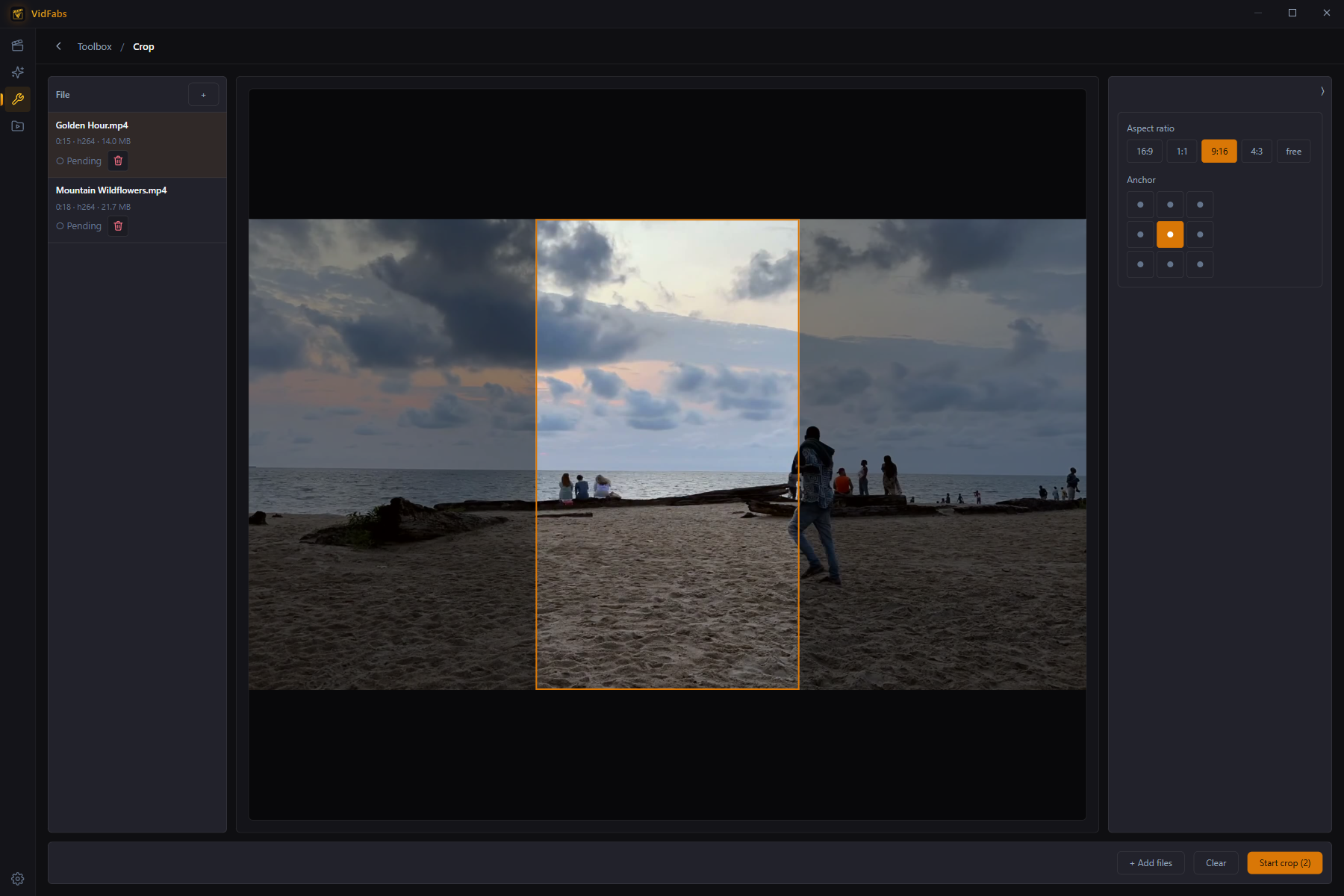
Besides the presets (16:9, 9:16, 1:1, 4:3 and others), you can enter free width and height percentages if you want a crop that is not a standard ratio.
When the speaker is off-center
Landscape footage is often framed with the subject to one side. If you leave the anchor at center, you may cut them in half.
Pick a left or right position on the 9-grid instead, and watch the preview until the face and shoulders sit inside the rectangle. This is a fixed crop: the window stays in one place for the whole clip, and it does not follow a moving subject. If the person walks across the frame, a single anchor will not hold them, and you may need to split the clip or accept a wider framing.
The same applies to batches. One crop setting is applied to every file, so group clips that are framed the same way and run them together.
Landscape to portrait: what to expect
Going from landscape to portrait video always costs picture area, so decide what the viewer must see before you crop. If two people sit far apart in a wide shot, a single 9:16 window cannot hold both; either keep one of them or use a padded layout made with another tool.
Why a crop can look soft
Cropping to 9:16 takes only part of the original pixels. A 1080p landscape clip cropped this way leaves a 607×1080 area, which is then shown on a vertical screen. That is usually fine on a phone, but a 720p source will look noticeably softer. Start from the highest-resolution original you have. The technical detail of how a crop works is documented in the FFmpeg crop filter reference.
If you also need the moments picked for you
This post is for reframing a clip you already have. If your source is a long podcast, stream or lecture and you want the best moments found, cut and reframed automatically, that is a different job. AI Clips transcribes the footage, picks highlights and renders captioned vertical clips for you.
Next step
Open Toolbox → Adjust → Crop and try the 9:16 preset on one clip first. The full list of options is in the Picture Adjustment guide. When the crop looks right, add the rest of the batch and run it.