Key Takeaways
- How to rotate a video in VidFabs: open Toolbox → Adjust → Flip / Rotate, add up to 20 files, pick a rotation in 90° steps, check the live preview, and apply it to the whole batch.
- To fix a sideways video, rotate the video 90 degrees (or 270° for the other direction). For an upside-down clip, rotate by 180°.
- Rotate and flip are different jobs. Rotation turns the picture; a horizontal or vertical flip (mirror) reverses it, like a selfie camera or a recording made through a mirror. The two can be combined.
- Only 90° steps and horizontal/vertical mirroring are available. There is no arbitrary-angle rotation or straightening slider.
- The result is a new file, so keep your original and don’t assume the export is lossless. Everything runs locally on your Windows PC.
Why phone video imports sideways
A phone often records the sensor’s picture in one fixed orientation and adds a small rotation flag to the file that says “show this turned by 90°”. A player that reads the flag shows the clip upright. A player or editor that ignores it shows the clip on its side or upside down, even though the same file looked fine on the phone.
That is why one file can look right in one app and wrong in another. Rotating the clip so the pixels themselves are turned fixes it for any player that doesn’t honor the flag. FFmpeg’s transpose filter reference shows this kind of pixel-level operation: the filter rewrites the frames themselves, turning them by 90° and optionally flipping them.
Rotate or flip: which do you need?
These two are easy to mix up, and picking the wrong one is the usual reason a fix “doesn’t work”.
- The clip is on its side or upside down: you need a rotation. Turn it by 90° steps until the people and horizon are upright.
- The picture is upright but reversed, so text reads backwards or someone’s left and right are swapped: you need a flip. This is common with front-camera selfies and with footage recorded through a mirror. To flip a video horizontally is to mirror it left-to-right; a vertical flip mirrors it top-to-bottom.
- Both look wrong: combine them. In VidFabs the mirror and rotation options can be used together.
A quick test: find any text or a logo in the frame. If it is turned, rotate. If it is a mirror image, flip.
Rotate or flip a video in VidFabs, step by step
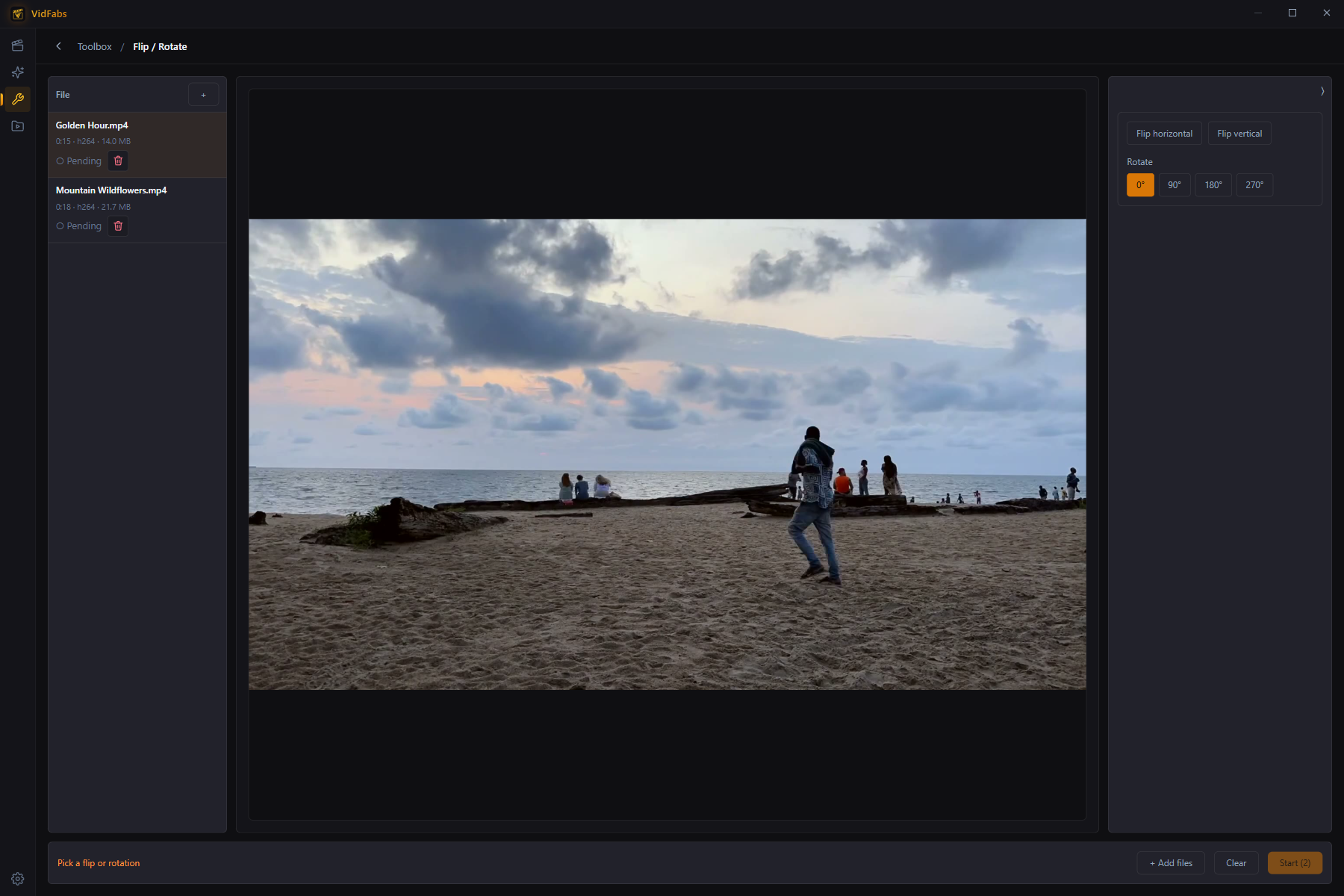
Here is how to rotate a video 90 degrees, or flip it, for several files at once:
- Open Toolbox → Adjust → Flip / Rotate.
- Add up to 20 files, then select one to preview it.
- Choose the rotation in 90° steps, a horizontal or vertical mirror, or a combination, and check the result on the live preview.
- Apply the same adjustment to the whole batch. Each file shows its own status and an ETA, and you can cancel the batch.
Because one setting applies to every file in the batch, group clips that need the same fix. Put the sideways clips from one phone in one run and the mirrored selfies in another.
Fix a mirror selfie video
A selfie or a recording made through a mirror can show text backwards, or swap left and right. If you want the footage to match what people actually see, open Flip / Rotate and choose the horizontal mirror. To mirror a selfie video that is already upright, you need only the mirror, not a rotation. Check the preview before you apply it to the batch.
Combine it with other edits in one export
If you also want to crop, change speed (see Speed Up Video Without Changing Pitch), adjust color, or burn in subtitles and a watermark, use the Quick editor on the Editor page. Flip / Rotate is one of its stackable effects, with horizontal/vertical mirror and 90°/180°/270° rotation, so you can set everything against one preview and export once instead of chaining tools. See The Quick Editor for the full effect list. If the next step is a vertical crop, How to Convert a Horizontal Video to Vertical (9:16) picks up from there.
What it doesn’t do
- No free-angle rotation. You can’t turn a clip by, say, 7° to level a tilted horizon. There is no straightening slider.
- Not a guaranteed lossless fix. Treat the output as a new file. Keep the original and run the rotation from it once rather than rotating a rotated copy.
- No Mac build yet. VidFabs is for Windows 10 / 11 (64-bit); macOS is coming soon.
Get VidFabs
Flip / Rotate is part of the Toolbox in the free tier, and it is one of the batch tools introduced in What’s New in VidFabs. Add the clips, pick the rotation, apply.
Download VidFabs for Windows. Full tool reference: Crop, Flip/Rotate, Color & Speed.