AI short video generator
Turn your long videos into captioned vertical shorts automatically — transcription and rendering run on your own PC. Hand VidFabs a podcast, stream replay, lecture or gameplay video and get back ready-to-post clips.
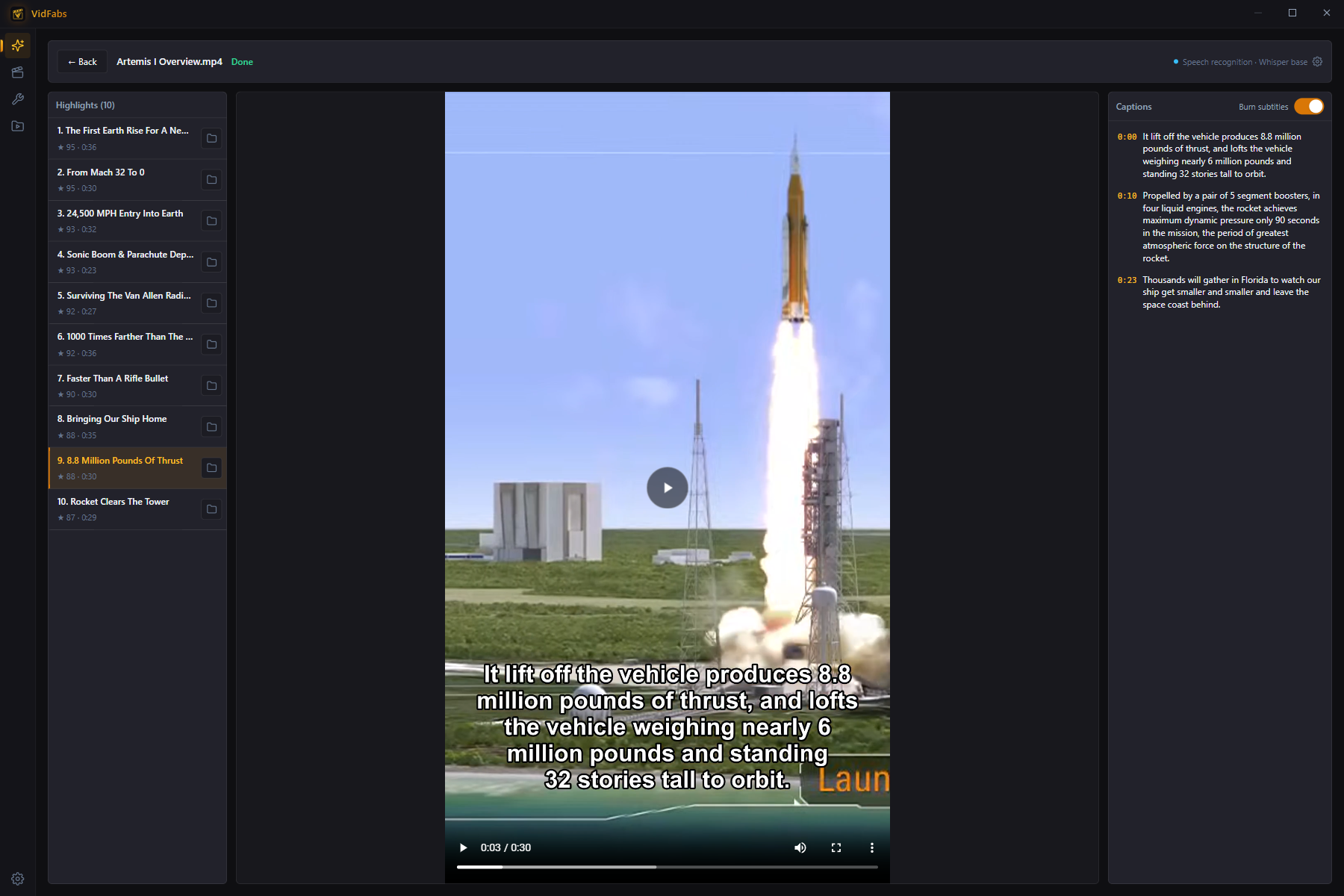
How it works
-
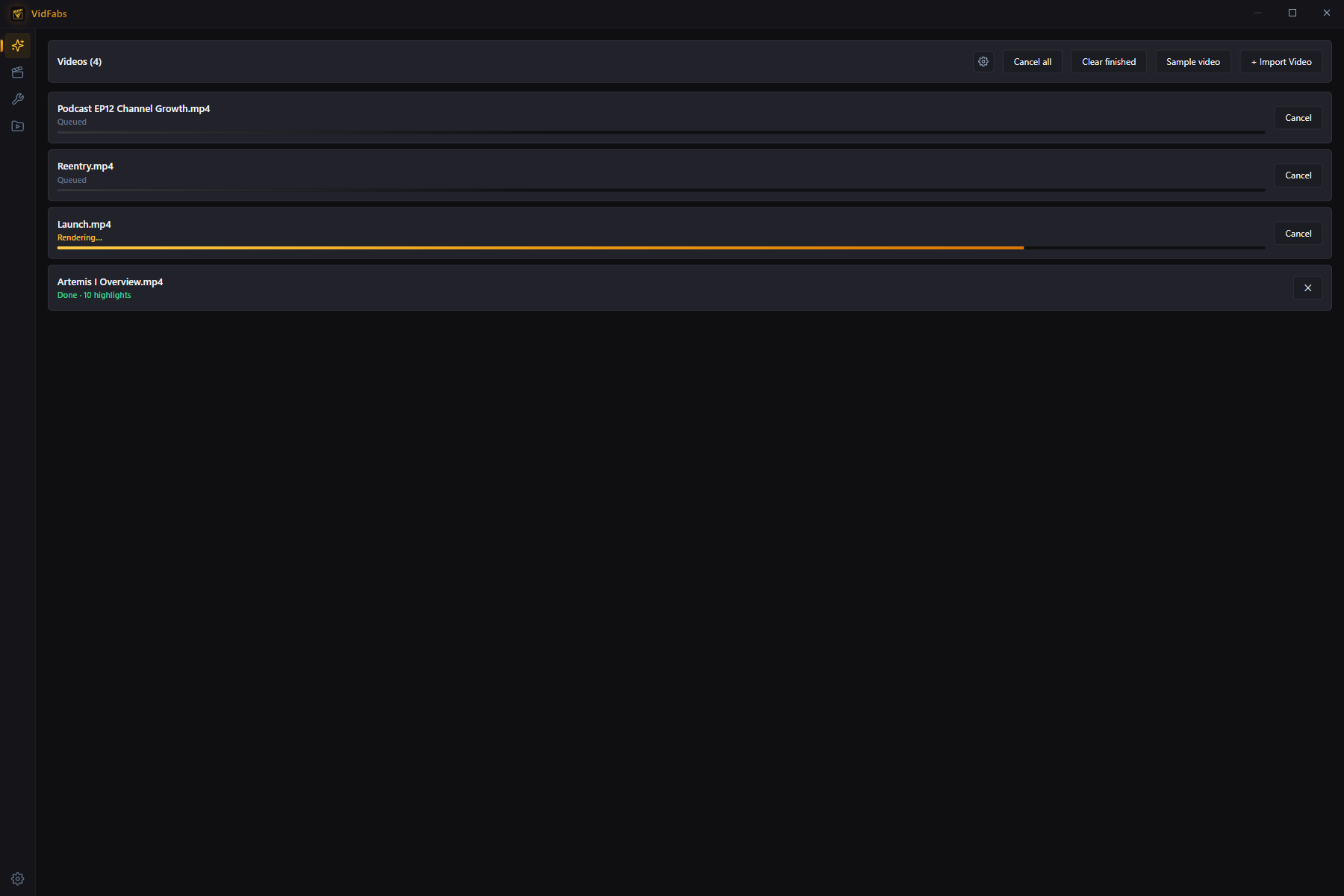
Queue your videos
Add one long video or up to 20 at once; they're processed one after another.
-
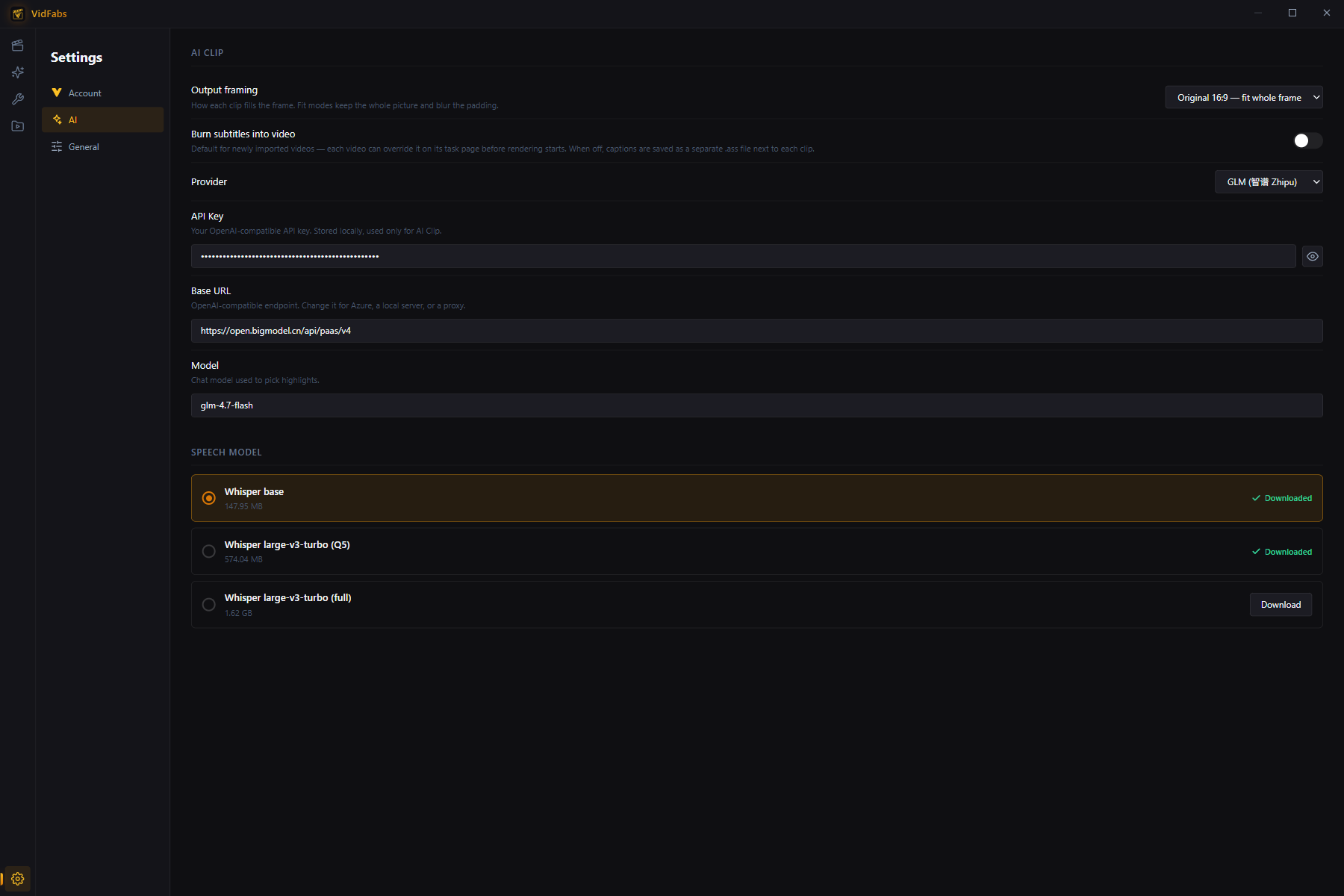
Download the speech model (first run only)
The speech-recognition model downloads once with a progress bar and is cached on your PC.
-
Transcribe locally
Multilingual Whisper models turn speech into timestamped text on your own machine — the audio never leaves it.
-
Pick the highlights
The transcript goes to the LLM you configured, which picks up to 10 highlights per video.
-
Render the shorts
Each highlight is cut, reframed and rendered with captions — burned into the video or saved as a separate .ass file, your choice per video. Preview them, read the captions and open the output folder.
Output framing
- Vertical 9:16 — crop: fills the vertical frame, made for short-video platforms.
- Vertical 9:16 — full frame: keeps the whole picture with blurred bars above and below.
- Original 16:9 — full frame: classic landscape output.
One-time setup
- Speech model — pick a recognition model in Settings → AI. Larger models are more accurate, and Pro includes the most accurate one.
- LLM API — your own OpenAI-compatible key, with provider presets or a custom base URL (Azure, local servers, proxies). The key is stored only on your PC.
Local, not uploaded
Cloud clipping tools make you upload the whole video first and often charge by the minute or by credits. VidFabs transcribes and renders on your PC; the only thing sent out is the transcript text, to the LLM endpoint you chose, billed to your own key.
Try it free with a sample video
No API key yet? On the free plan you can run the full pipeline on a NASA sample video — real model download, local transcription and rendering, with pre-picked highlights. It needs an internet connection to download the sample.
Fine-tune in the Advanced editor
Import the generated clips into the Advanced editor (Media Bin → Import media) to fine-tune them frame by frame.
See the frame-by-frame editor →Frequently asked questions
Do I need an API key?
Is my video uploaded?
How many clips do I get?
Which aspect ratios can it output?
Which languages does it support?
Turn your next long video into shorts
Download free for Windows — upgrade to Pro for AI Clips and the Advanced editor.
Read the full AI Clips guide →