If you want to know how to add a watermark to a video, the short version is: pick text or a logo, set its size, opacity and corner, and let the tool render it into every frame. Doing that for one clip is easy. Doing it for a whole folder without opening each file is where a batch tool earns its keep.
Key Takeaways
- To add a watermark in VidFabs, choose Text or Logo watermark, set size, opacity and position, and run the batch.
- Use a text watermark for a channel name, copyright line or URL, and a logo watermark (a transparent PNG) for a brand mark.
- In VidFabs both live under Toolbox → Subtitle & Watermark, and both process up to 20 files per run with per-file status and an ETA.
- Logo size is set as a percentage of video width, so the same setting looks the same on 720p and 4K clips.
- Use a PNG, not a JPG: JPG has no alpha channel, and the tool warns you before you commit.
- A watermark is a visible deterrent, not protection. Anyone can crop or cover it, and a visible overlay is not the same as invisible or forensic watermarking.
Text or logo: which one fits?
Text is the quick option. It suits a channel name, an @handle, a copyright line or a URL, and it needs no design work. Because Unicode and CJK text both work, a Chinese or Japanese channel name renders correctly without extra setup.
A logo is better when you already have a brand mark that viewers recognise. It looks more polished than plain text, and it keeps its shape and colours. The catch is that you need a clean file with a transparent background.
If you are unsure, start with text. You can always switch to a logo later, and the batch settings work the same way.
How to add a text watermark
Open Toolbox → Subtitle & Watermark → Text watermark and add your videos. This is the quickest way to add a text watermark to a video.
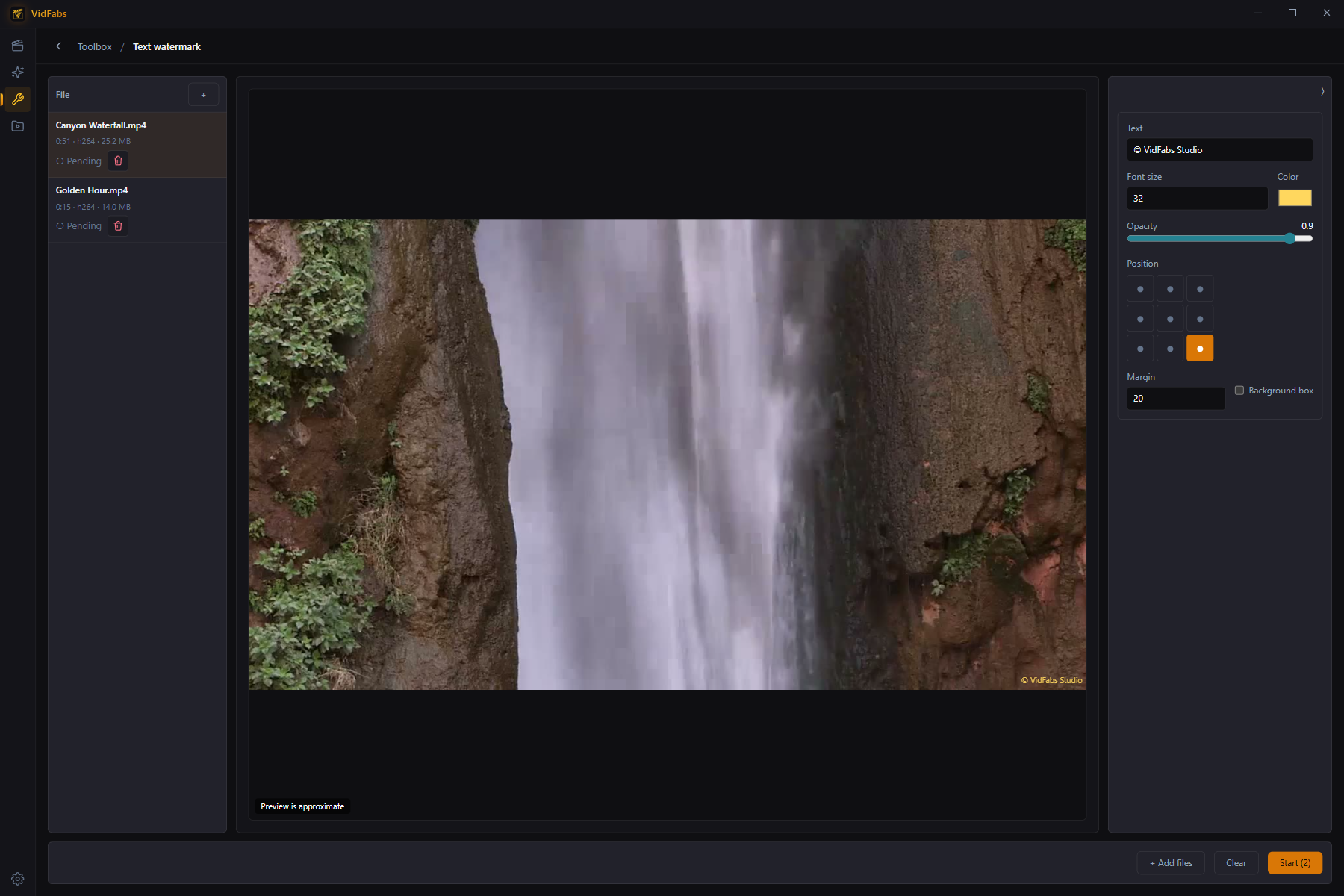
The documented controls are:
- Text: the exact words to show.
- Font size, color and opacity.
- Position on a 9-grid (corners, edges, centre).
- Margin: the distance from the edge.
- An optional background box behind the text, for readability on busy footage.
That is the full set. The guide lists no animation, motion or tiling options, so plan for a static mark.
How to add a logo to a video
Open Toolbox → Subtitle & Watermark → Logo watermark, add your videos, and choose your image. A transparent PNG logo on video is the cleanest result: the logo sits on the picture with no box around it.
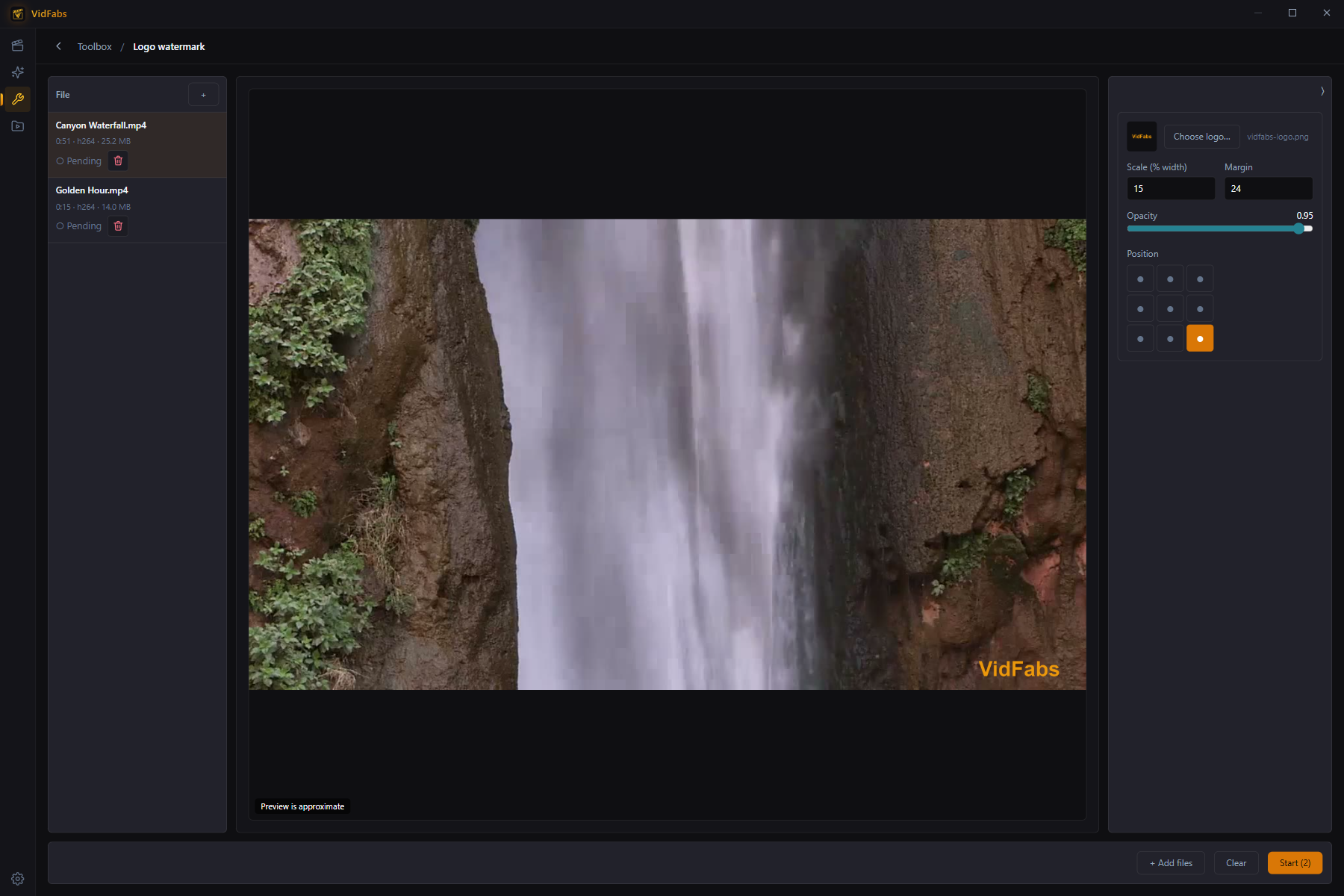
The controls are:
- Scale, as a percentage of video width. Because it is relative, a logo set to the same percentage looks consistent across resolutions instead of becoming tiny on a 4K clip.
- Opacity.
- Position and margin.
PNG transparency is respected. If you pick a JPG, the tool warns you that it has no alpha channel before you commit, so you will not discover a solid box around your logo after a long render. Export the logo from your design tool as a PNG with a transparent background and you avoid the problem.
Batch watermark videos
Both watermark tools handle up to 20 files per run, with per-file status and an ETA. Set the text or logo once, add the files, and run. Every file gets the same settings, which is what you want for a season of clips or a course playlist.
If you only have one video and want to combine a watermark with other changes, the Quick editor offers text and logo watermarks as stackable effects alongside crop, speed and color. Everything is composed into a single export, so the video is encoded once. The Quick editor guide covers it.
Practical tips
- Use a corner and a margin. Platform interfaces such as captions, progress bars and buttons tend to cover the centre and the bottom edge. A corner with a small margin stays visible and out of the way.
- Keep opacity around 20–40%. That is a rule of thumb, not a documented setting. It stays legible without distracting from the picture. Raise it only if the mark disappears on bright footage, or add the background box for text.
- Test on one file first. Check a bright scene and a dark scene before you queue 20 files.
- Keep your originals. Burning a watermark in is permanent, so keep the clean masters.
- Set expectations. A watermark discourages casual re-uploads and credits the source. It will not stop someone determined to crop it out.
If you work with FFmpeg directly, the same two ideas appear as the overlay filter for images and the drawtext filter for text. VidFabs gives you those controls without the command line.
Subtitles are a different job
Watermarks and subtitles sit in the same Toolbox section but solve different problems. For burning or embedding captions, see Burn Subtitles and Add Watermarks to Videos in Batches.
Try it
Both watermark tools are in VidFabs on Windows 10 / 11 (64-bit). The Subtitles & Watermarks guide documents every control.
Download VidFabs for Windows — the macOS build is coming soon.