Getting text onto a video sounds simple until you hit the details: should the captions be permanent or switchable? Will the platform strip your subtitle track? How do you brand a hundred clips without opening each one? VidFabs answers all of that with four focused tools under Toolbox → Subtitle & Watermark — and every one of them handles up to 20 files at a time.
Burn vs embed: pick the right kind of subtitle
The single most important choice here is whether your subtitles are burned or embedded, so let’s get it straight first.
Subtitle (burn) renders an .srt, .ass or .vtt file permanently into the
picture. The captions become part of the video — they show on every player and every
platform, and nobody can turn them off.
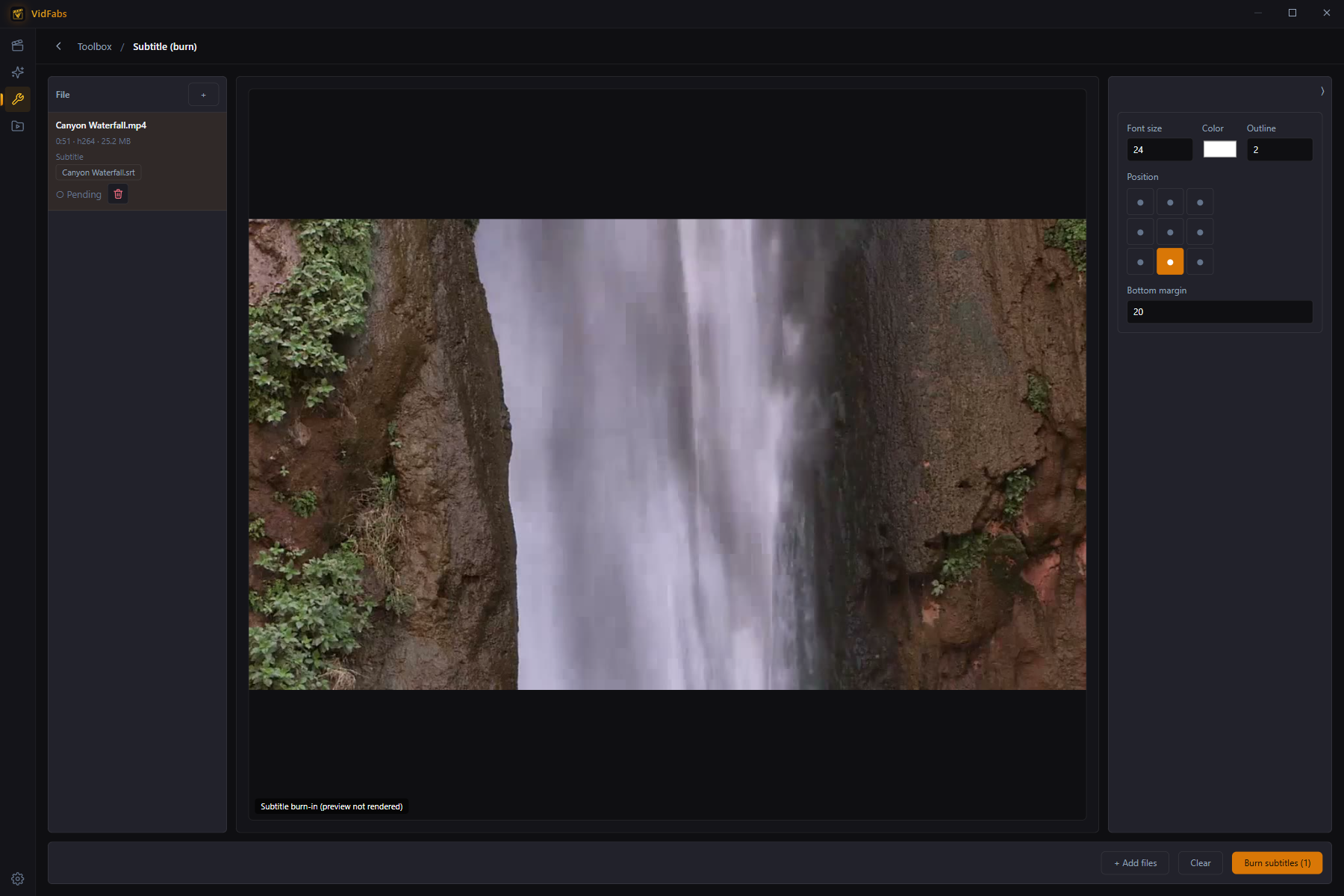
Pair each video with its subtitle file (sidecar files that share the same name are a
natural fit), then style the render: font size, color, outline, position, and bottom
margin. There’s full CJK support — Chinese, Japanese and Korean render correctly
out of the box — and .ass files keep their own embedded styling by design. Reach for
burning when you’re uploading to platforms that strip subtitle tracks, or whenever you
need guaranteed-visible captions.
Subtitle (embed) muxes the subtitle in as a selectable track with zero re-encode — the video and audio streams are copied untouched, so a 2 GB file finishes in seconds and loses nothing.
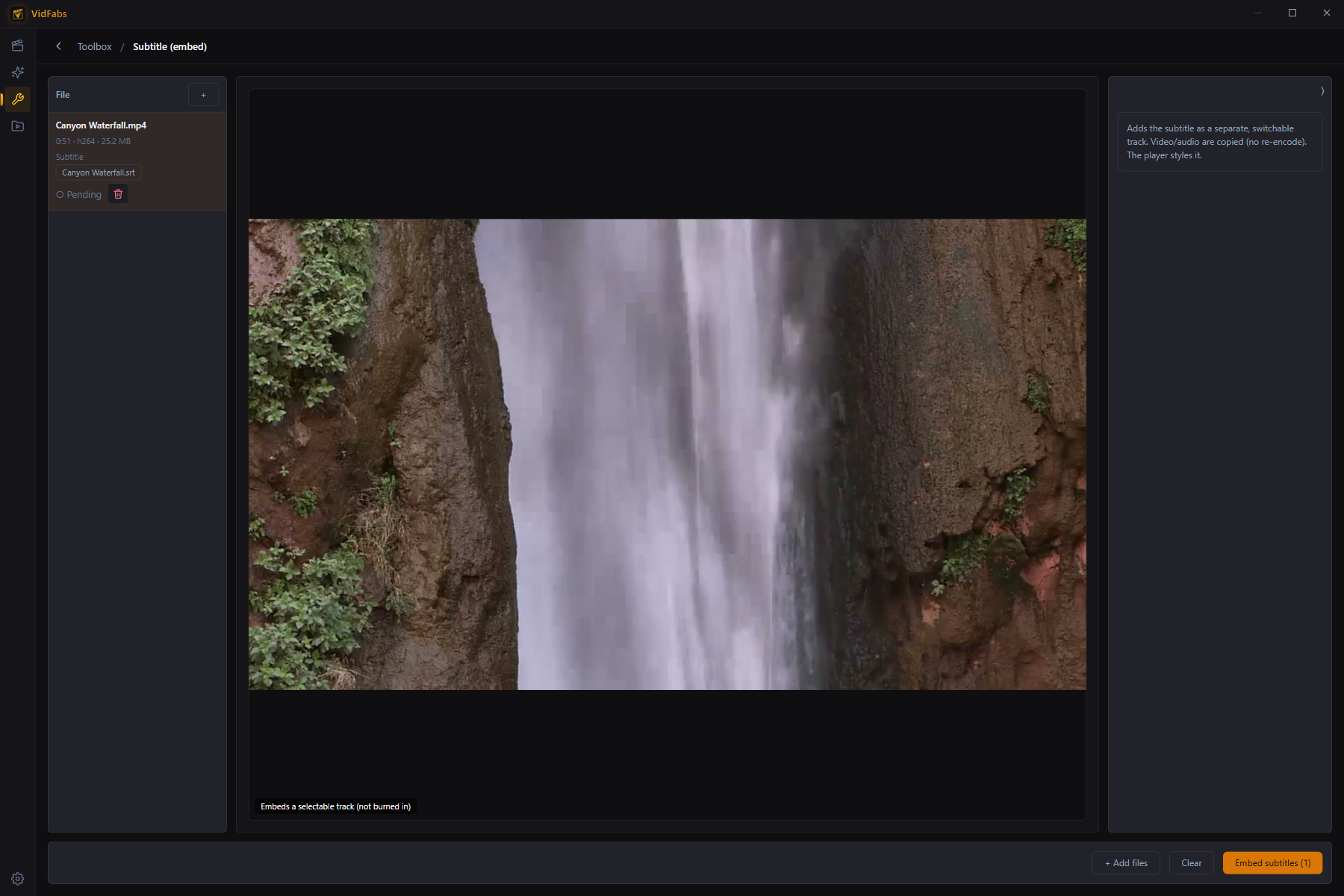
Viewers toggle the track on or off in their own player, which also styles the text.
VidFabs enforces the container rules up front — which containers support soft
subtitles, when .ass styling would be dropped — instead of failing mid-run. Use embed
for archives, multi-language releases, or any time the viewer should get to choose.
Watermark your clips
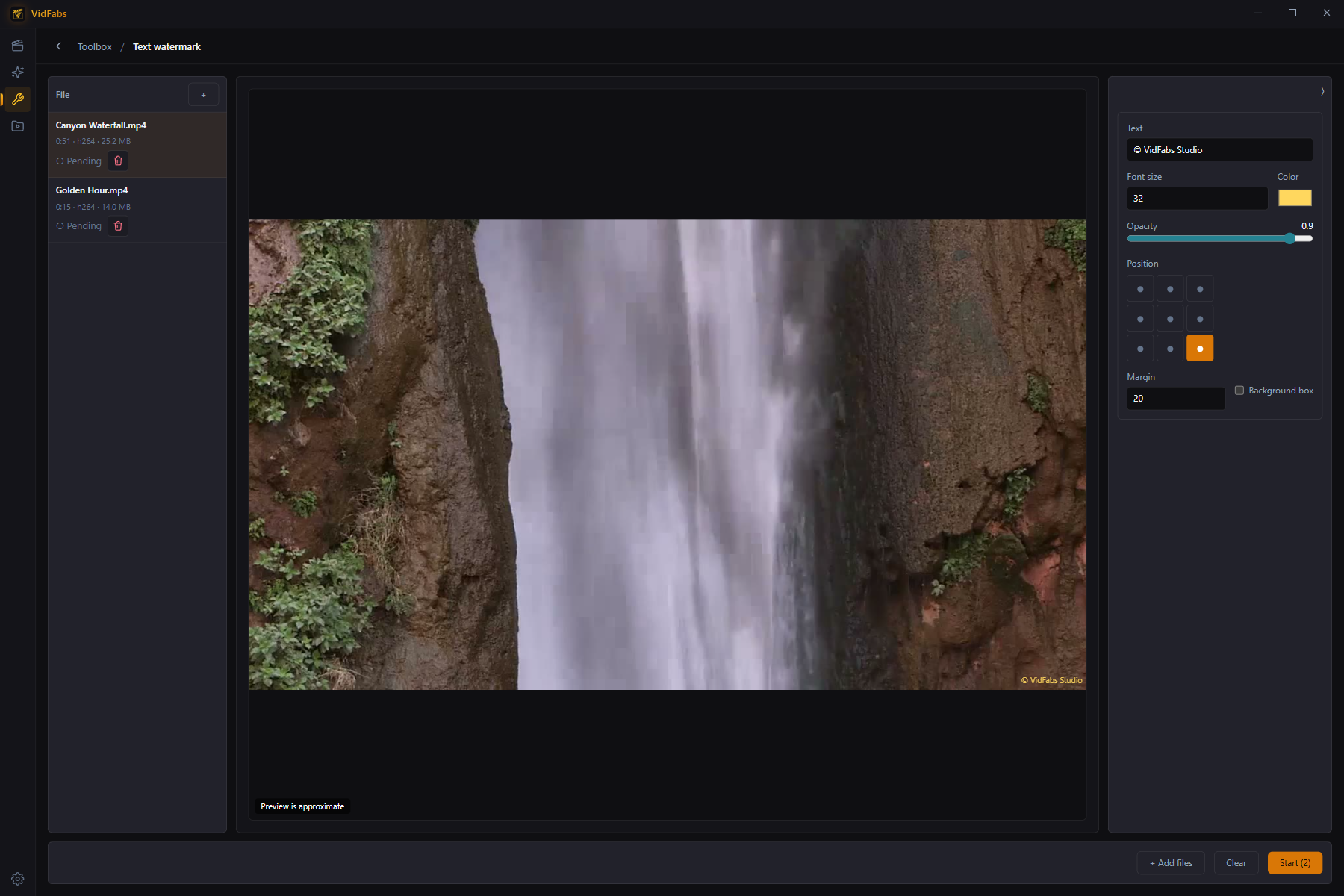
Text watermark overlays any text — a channel name, a copyright line, a URL. You control the text, font size, color, opacity, position on a 9-grid, margin, and an optional background box for readability. Unicode and CJK text work out of the box.
Logo watermark overlays an image, typically a transparent PNG. Scale is set as a percentage of video width, so a logo looks consistent across every resolution; opacity, position and margin round it out. PNG transparency is respected, and the tool warns you that JPG has no alpha channel before you commit.
Want the full walkthrough for watermarks alone? See How to Add a Watermark to a Video.
Built for batches
All four tools process up to 20 files per job with per-file status and an ETA — so branding a season of clips or subtitling a course playlist is one queue, not one tedious file at a time.
And if you’d rather do a single video with several effects at once, text/logo watermarking and subtitle burning are also available inside the Editor as stackable effects — one preview, one export. The Editor guide covers that workflow, and the Subtitles & Watermarks guide documents every control in these four tools.
Get VidFabs
All four tools are free on Windows 10 / 11 (64-bit), no GPU required.
Download VidFabs for Windows — the macOS build is coming soon.