A two-hour podcast holds a dozen great thirty-second moments — but finding them, cutting them, reframing them to vertical, and captioning each one by hand is an afternoon of work. AI Clips does the whole thing for you, and it does it for a batch of videos at once. It’s the flagship Pro feature in VidFabs.
The pipeline, start to finish
Feed AI Clips one or many long videos — up to 20 in a single queue — and each one moves through a pipeline you can watch the whole way:
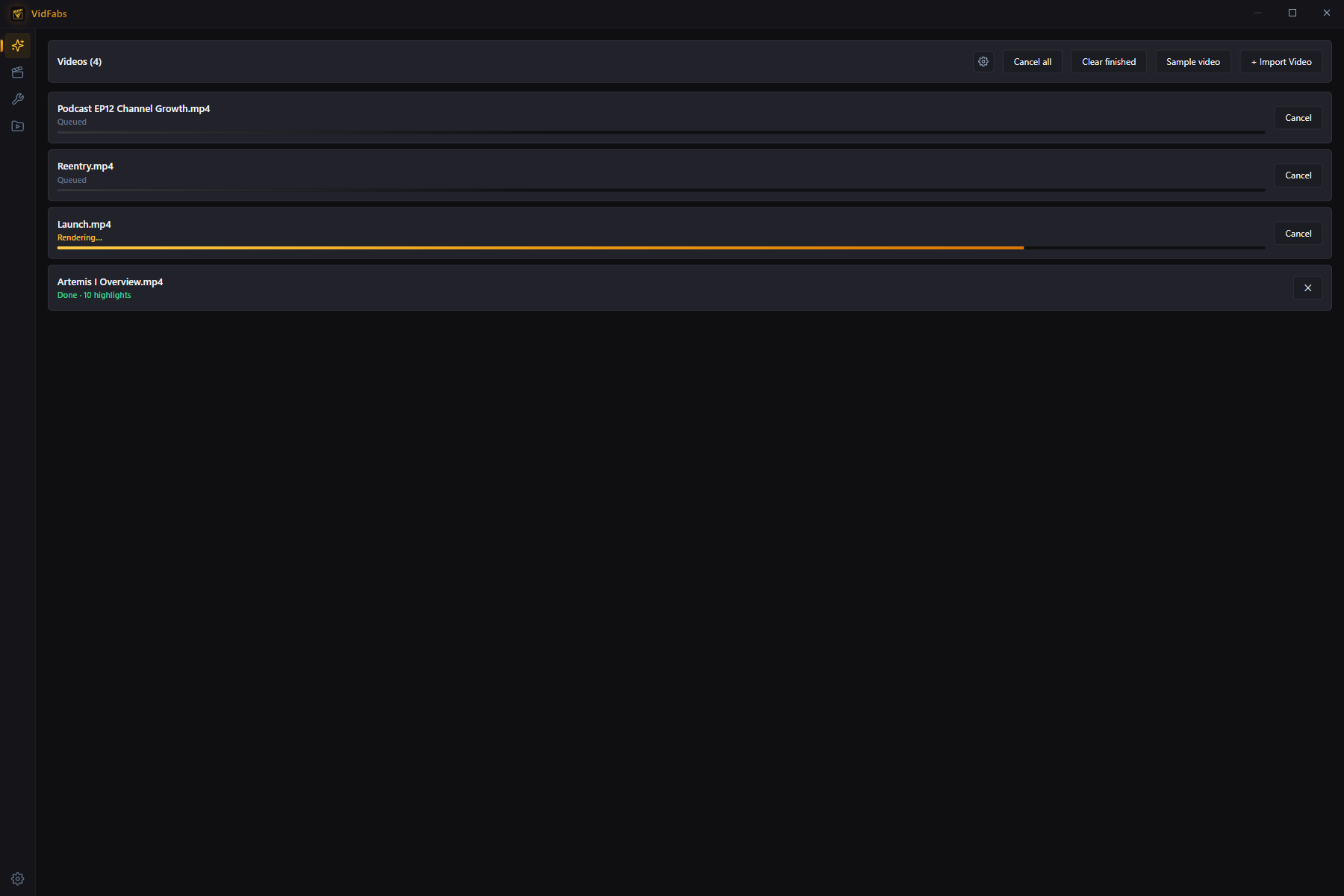
- Queued — videos wait their turn in the batch.
- Downloading AI model — on the first run only, the speech-recognition model is fetched once and cached locally, with a progress bar.
- Transcribing — a Whisper-family model turns speech into timed text entirely on your machine.
- Selecting highlights — the transcript goes to your configured LLM, which scores the moments and picks up to 10 highlights per video.
- Rendering — each highlight is cut, reframed, and rendered with burned-in captions.
You can cancel any single task or the whole queue at any point, and clear finished items in one click.
Set it up once
AI Clips needs two things, both in Settings → AI:
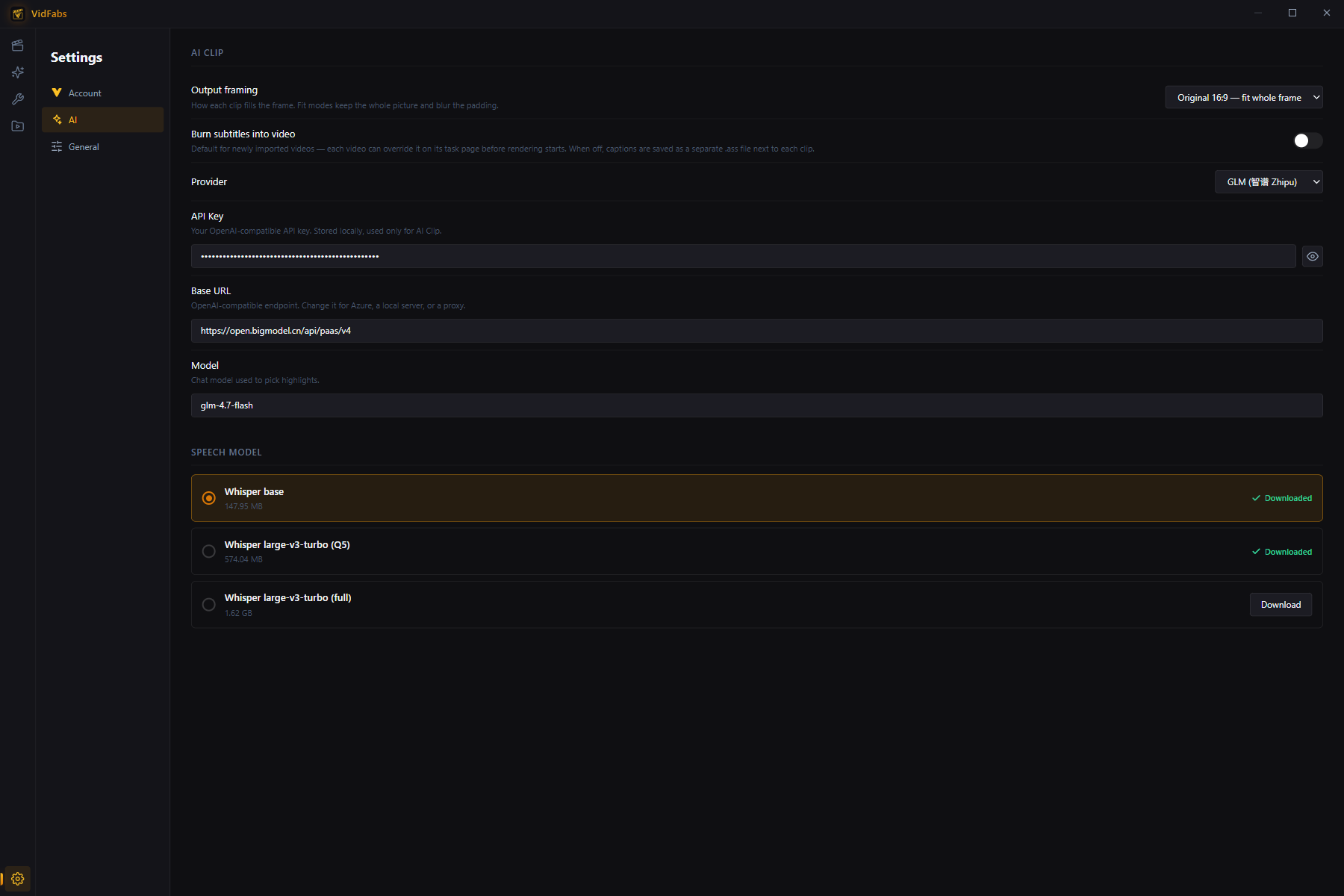
- A speech model. Pick a recognition model — larger models are more accurate, and Pro includes the highest-accuracy one. Models download in-app with a progress bar and can be cancelled.
- An LLM API key. Bring your own OpenAI-compatible key. Provider presets, a custom Base URL (Azure, a local server, a proxy) and the model name are all configurable. The key is stored locally and used only for AI Clips.
This is a one-time setup. After it, every future batch just runs.
Review the results
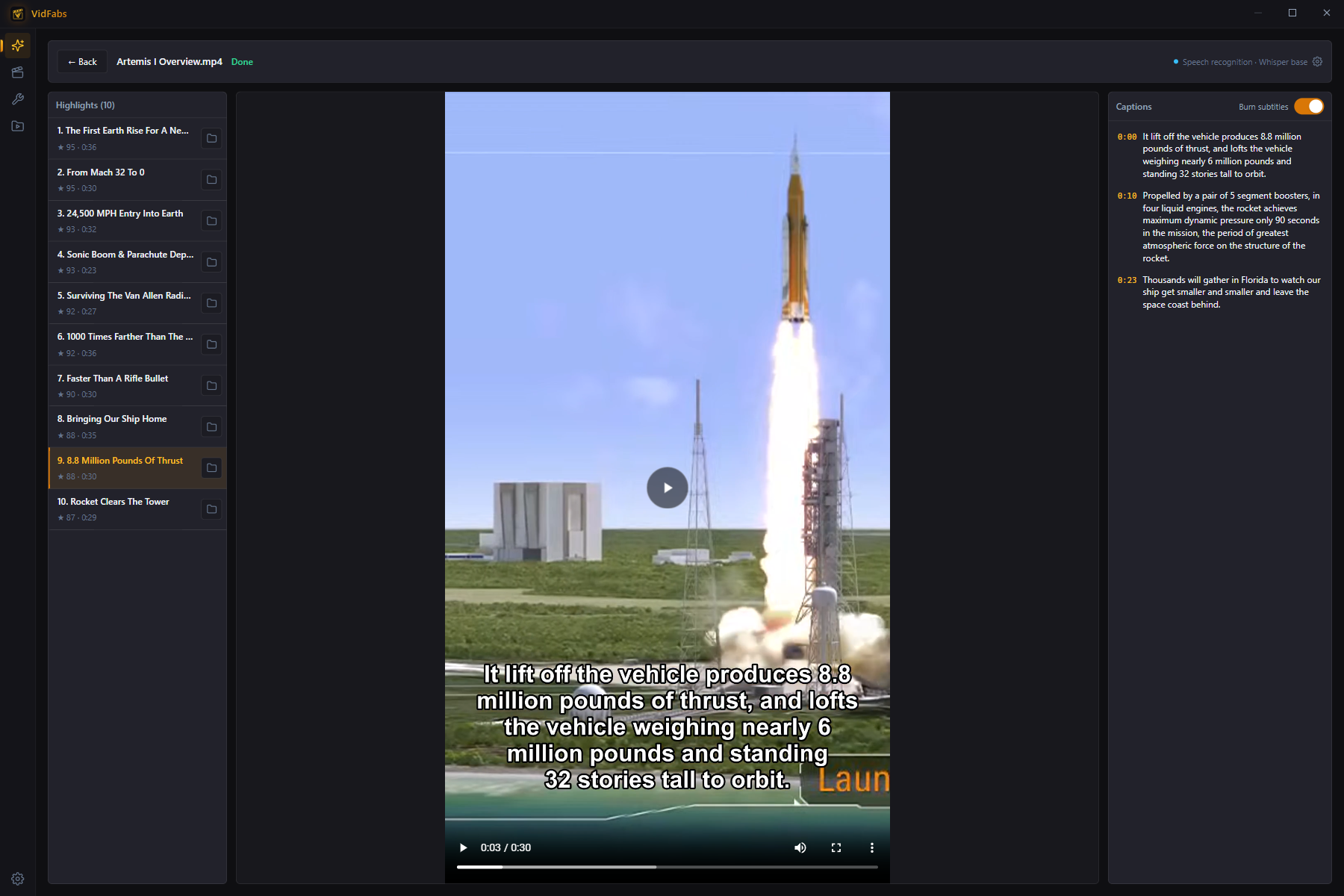
When a video finishes, select it to browse its highlights — preview each clip, read its captions, and open the output folder straight from the app.
Choose how clips are framed
Under Settings → AI → Output framing, pick how each clip fills the frame:
- Portrait 9:16 — crop: fills a vertical frame, ideal for Shorts, TikTok and Reels.
- Portrait 9:16 — fit: keeps the whole picture and blurs the padding around it.
- Original 16:9 — fit: classic landscape output.
Already have a single clip and just want it vertical? You don’t need the AI pipeline: see how to convert a horizontal video to vertical with the Crop tool.
Where your data goes
This is the part that matters: transcription is 100% local. The video and audio never leave your device. The only thing sent off-machine is the text transcript, and only to the LLM endpoint you configured yourself — so you decide exactly which service sees it.
Availability
AI Clips is Pro-only. On the free tier the page shows what the feature does and offers the upgrade; the full flow unlocks the moment a license is activated. See the plans on the pricing section, and the AI Clips guide for every option in detail.