Key Takeaways
- How to merge videos into one: make every clip end up with the same codec, resolution, frame rate and audio sample rate. Joining clips that differ in those is what causes audio desync, frozen frames and wrong durations at the seams.
- VidFabs’ Video merger (Toolbox → Edit) checks your clips against the first one before you start, then decodes and re-encodes everything into one uniform file. It is not a lossless stream copy.
- Order matters: the clips play in the order you arrange them, and the first file is the reference for the compatibility check.
- Typical jobs: GoPro or dashcam segments, a multi-part recording, or intro + main + outro.
- It runs on your own Windows PC. Nothing is uploaded.
Why a naive join breaks
This applies whether you want to join MP4 files from a phone or combine videos on Windows from several cameras. The technical name for the step is “concatenation”, which is also what FFmpeg’s documentation calls it. Every video file is a container holding a video stream and an audio stream, each encoded with specific settings: codec, resolution, frame rate, and for audio, the sample rate. If you just glue two files together byte for byte, a player has no idea the settings changed halfway through. You get a picture that freezes, sound that drifts out of sync, or a total duration that doesn’t match what you expected.
There are two ways to avoid that, and the FFmpeg Concatenate wiki describes both:
- Stream-copy concatenation. The streams are joined without re-encoding. It is fast and loses no quality, but it only works when the clips already share the same codec and parameters. Clips from one camera in one session often do; clips from different sources usually don’t.
- Re-encode concatenation. Every clip is decoded and then encoded again into one common format. It takes longer and is a new lossy generation, but it works on mixed sources, and the seams come out clean.
VidFabs’ Video merger takes the second route: it always decodes and re-encodes all inputs into one uniform output. That is the trade-off for being reliable with clips that don’t match. If you only need to change one file’s container, that is a different job; see Batch Convert Videos to MP4, MKV, WEBM or MOV for remux versus re-encode on single files.
Merge videos into one in VidFabs, step by step
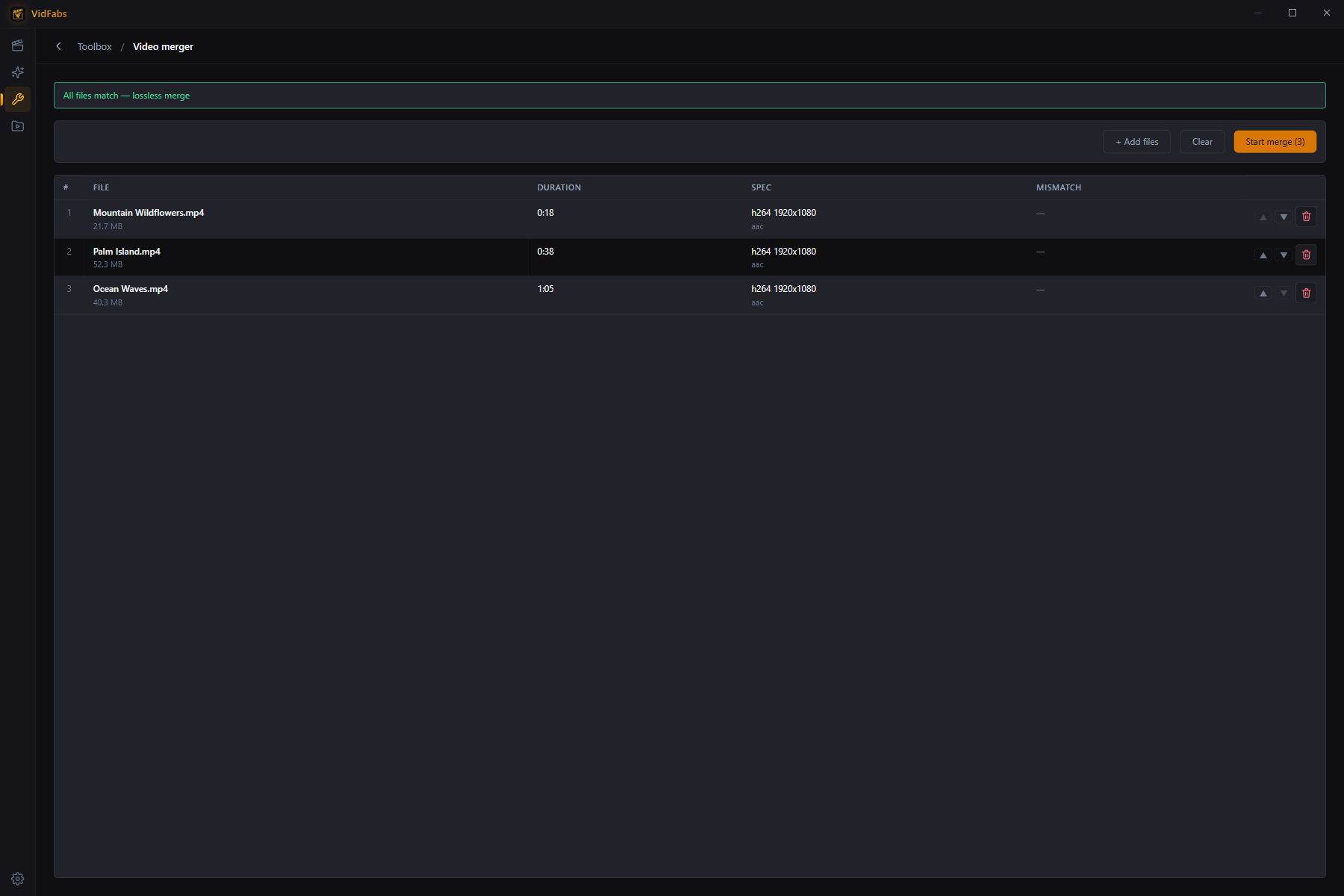
- Open Toolbox → Edit → Video merger.
- Add two or more files and arrange their order. The result plays in this order.
- VidFabs probes every file and runs a compatibility check against the first, flagging codec, resolution and sample-rate mismatches before you start. Read what it flags: it tells you which clips differ from your reference.
- Click Start merge. All inputs are decoded and re-encoded into one clean, uniform output, so even mixed sources join reliably, with no audio desync or duration glitches at the seams.
Because the compatibility check uses the first file as its reference, put your main clip first.
Common jobs
- Merge GoPro clips and dashcam segments. Action cameras and dashcams record in segments. Add the segments in order and run the merge to get one continuous file.
- Stitch a multi-part recording. A long screen capture, lecture or download that arrived in several pieces becomes a single file.
- Intro + main + outro. Combine a branded intro, your main video and an outro. If you want transitions between them, the Toolbox merger doesn’t add any: that lives in the Pro Advanced editor timeline, which is a separate tool from the free Toolbox merger.
Tips for a clean result
- Trim first if you need to. If a clip has dead air at the start or end, cut it with the Video trimmer from the same Toolbox → Edit group before merging. Both tools are covered in the Trim, Merge & Audio Extract guide.
- Fix sideways clips first. If a phone clip imports on its side or upside down, rotate it before joining; see How to Rotate a Video.
- Expect a re-encode. Because the merger re-encodes, avoid merging the output of a merge over and over; keep your originals and join them in one pass.
- Need only the sound? Pull the audio track from the finished file with the Audio extractor.
Get VidFabs
VidFabs is free on Windows 10 / 11 (64-bit), and the Toolbox tools, including the Video merger, are part of the free tier. The workflow is always the same: add, order, check, merge.
Download VidFabs for Windows. The macOS build is coming soon. Full tool reference: Trim, Merge & Audio Extract.