Most format converters make you choose between two bad options: upload your footage to some website and wait, or re-encode everything and lose quality on files that didn’t need it. VidFabs’ Format converter does neither. It runs entirely on your machine, handles up to 20 files per batch, and — this is the important part — it repackages losslessly whenever it can, and only re-encodes when it truly has to.
Why convert locally
Nothing leaves your device. There’s no upload progress bar, no queue behind other users, no size cap imposed by a web service, and no privacy question about where your video sits after you’re done. A bundled FFmpeg engine does the work at the speed of your CPU, and your files stay exactly where they are.
Step by step
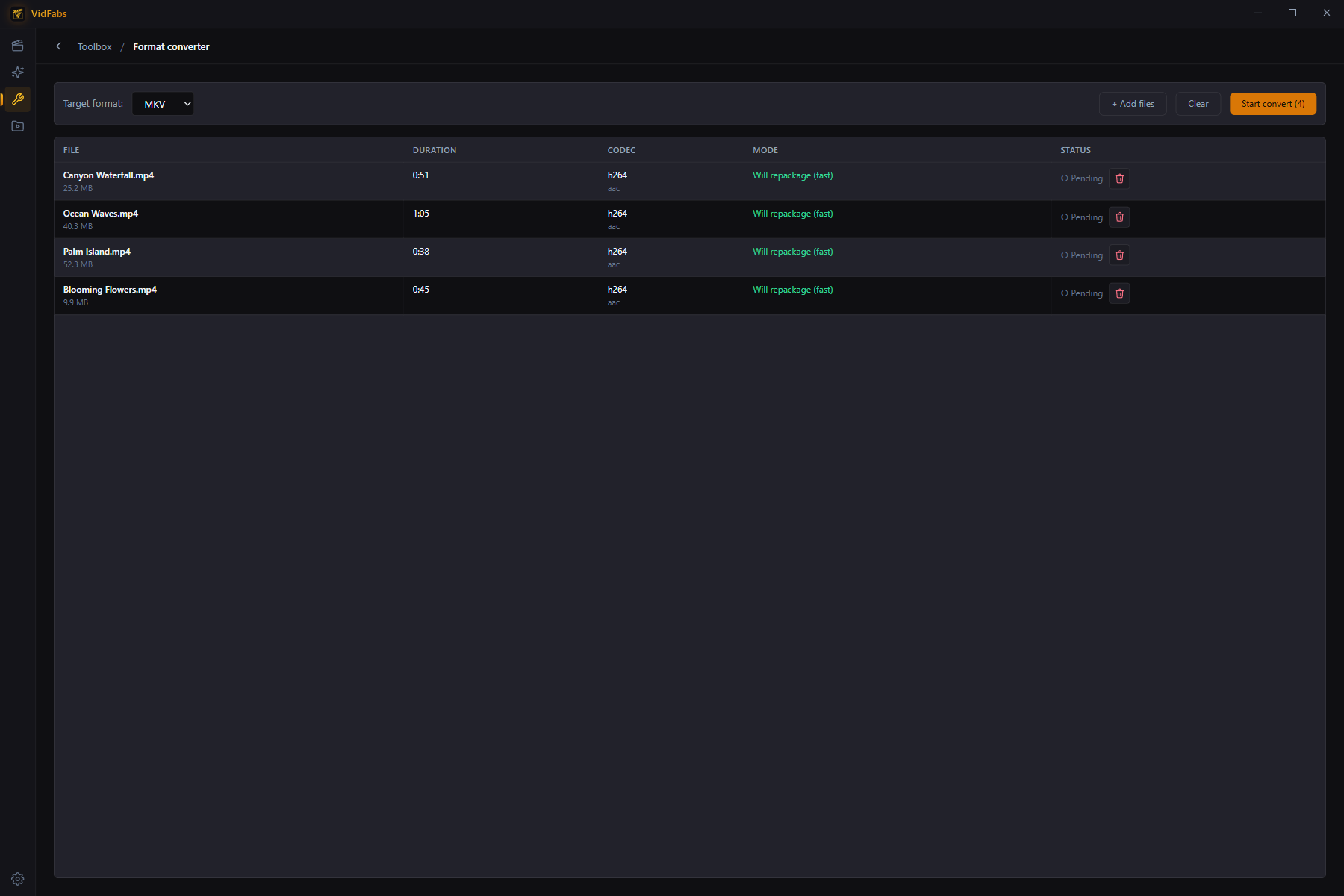
- Open Toolbox → Format converter.
- Drag in files — up to 20 per batch — or click Add files.
- Pick the target format: MP4, MKV, WEBM or MOV. Each row shows the file’s duration, its codec, and the mode the converter will use.
- Click Start convert. Rows show live status and an ETA, and you can cancel any time.
- When a file finishes, Open folder jumps straight to the output. Results also land in My Files → Edited.
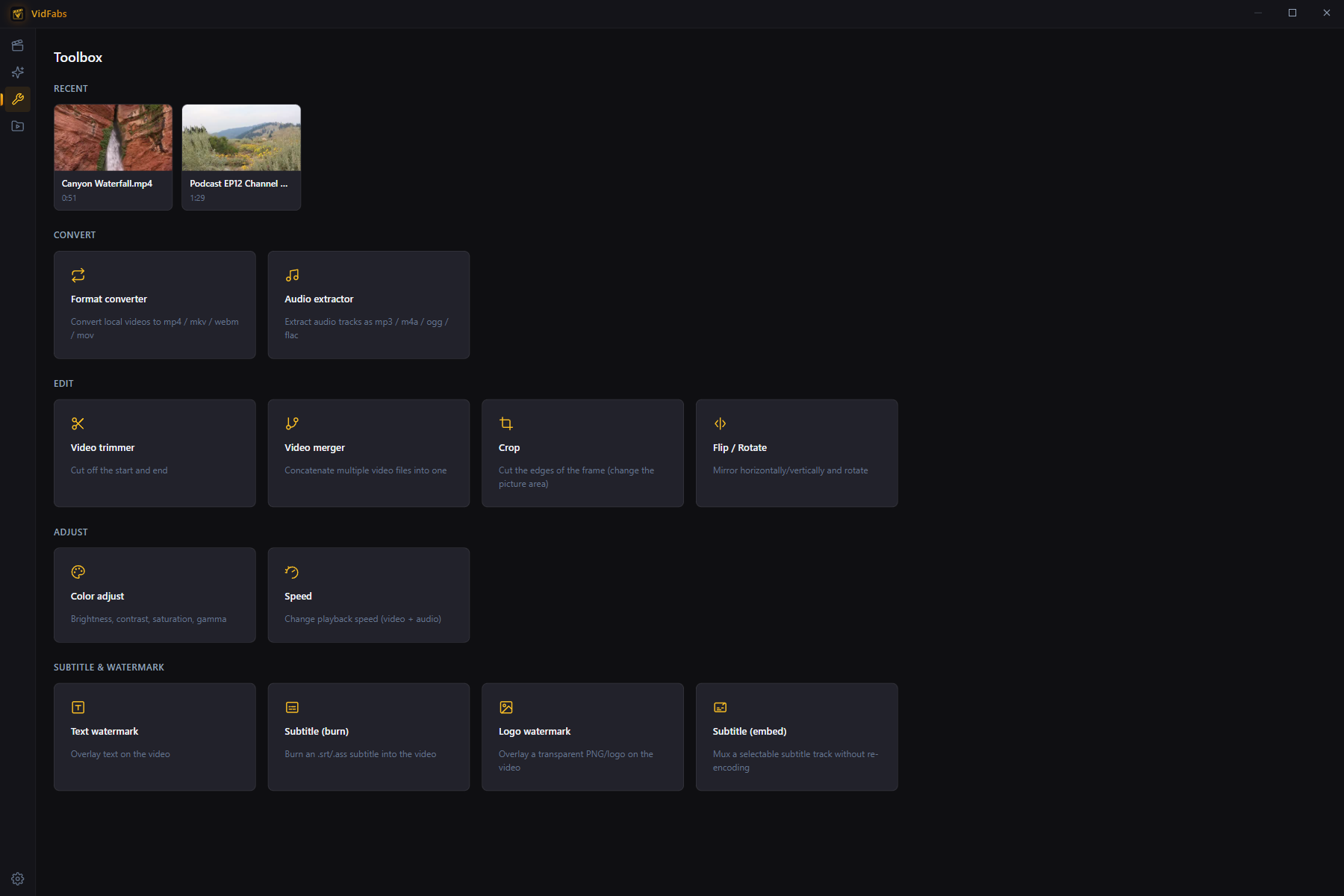
The Toolbox groups this alongside eleven other single-purpose batch tools, each with the same live-ETA, cancel-anytime workflow.
The part that saves your quality: remux vs re-encode
Here’s what makes this converter different. For every file, it inspects the streams and tells you before you start which of two modes it will use:
- Will repackage (fast). The codecs already fit the target container, so the file is rewrapped without touching the video data at all. It’s lossless and near-instant — a two-second operation even on a large file.
- Will re-encode. The codecs don’t fit the target container — say VP9 into MP4, or an H.264 file into WEBM — so VidFabs transcodes (to H.264/AAC, or VP9/Opus for WEBM).
Because the mode is shown up front on each row, you always know whether a conversion is a quick lossless rewrap or a real encode. No surprises, and no re-compressing a file that only needed a new wrapper.
Handy details
- MP4 output is written with faststart, so it begins playing immediately when streamed from a web server.
- Files the app can’t probe — corrupt or genuinely unsupported — are flagged individually instead of silently failing the whole batch.
- Typical jobs: rewrap MKV or MOV footage to MP4 so it plays everywhere (losslessly), produce WEBM for web embedding, or normalize a mixed folder of downloads into one consistent format.
The full reference is in the Format Converter guide. If your specific question is whether MKV → MP4 will cost you quality, we answer it in detail in Convert MKV to MP4 Without Losing Quality. If you only need the soundtrack, see How to Extract Audio from a Video in Batches.
Get VidFabs
VidFabs is free on Windows 10 / 11 (64-bit) and needs no GPU — all twelve toolbox tools, including the converter, are included at no cost.
Download VidFabs for Windows — the macOS build is coming soon.