VidFabs is a Windows desktop AI video editing tool. Everything runs locally on your machine — your videos are never uploaded anywhere.
Install
- Download the installer from vidfabs.com (the download button always serves the latest version).
- Run the installer. VidFabs supports Windows 10 and 11 (64-bit); no GPU is required.
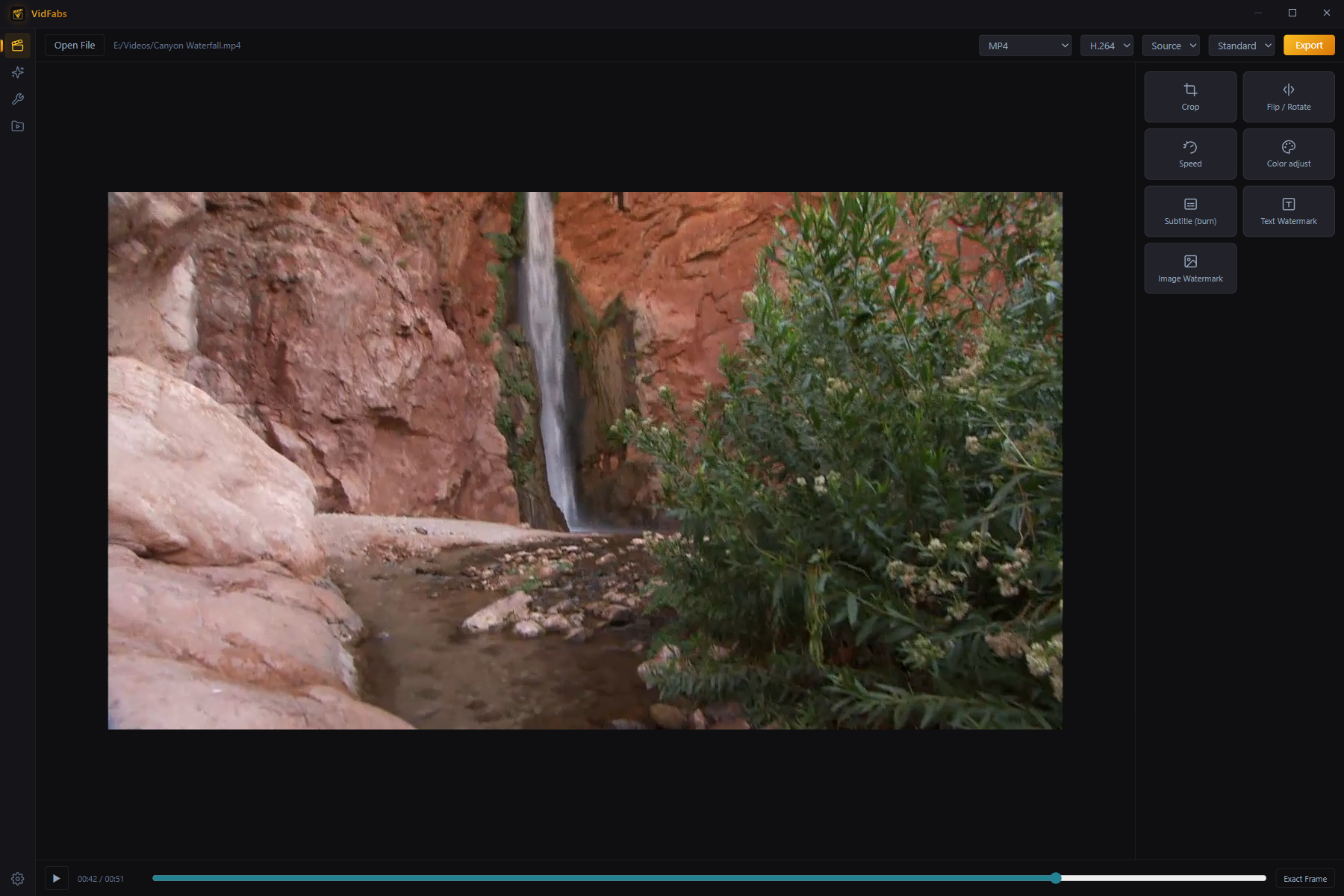
- Launch the app. You land on the Editor page, ready to drop in a video.
The five pages
The left sidebar navigates the whole app:
- Editor — the main workspace: import one video, stack effects, export.
- AI Clips (VIP) — batch-turn long videos into captioned shorts.
- Toolbox — 12 single-purpose batch tools (convert, trim, merge, watermark…).
- My Files — every video you imported or produced, with thumbnails.
- Settings — language, license, AI configuration, updates.
Choose your language
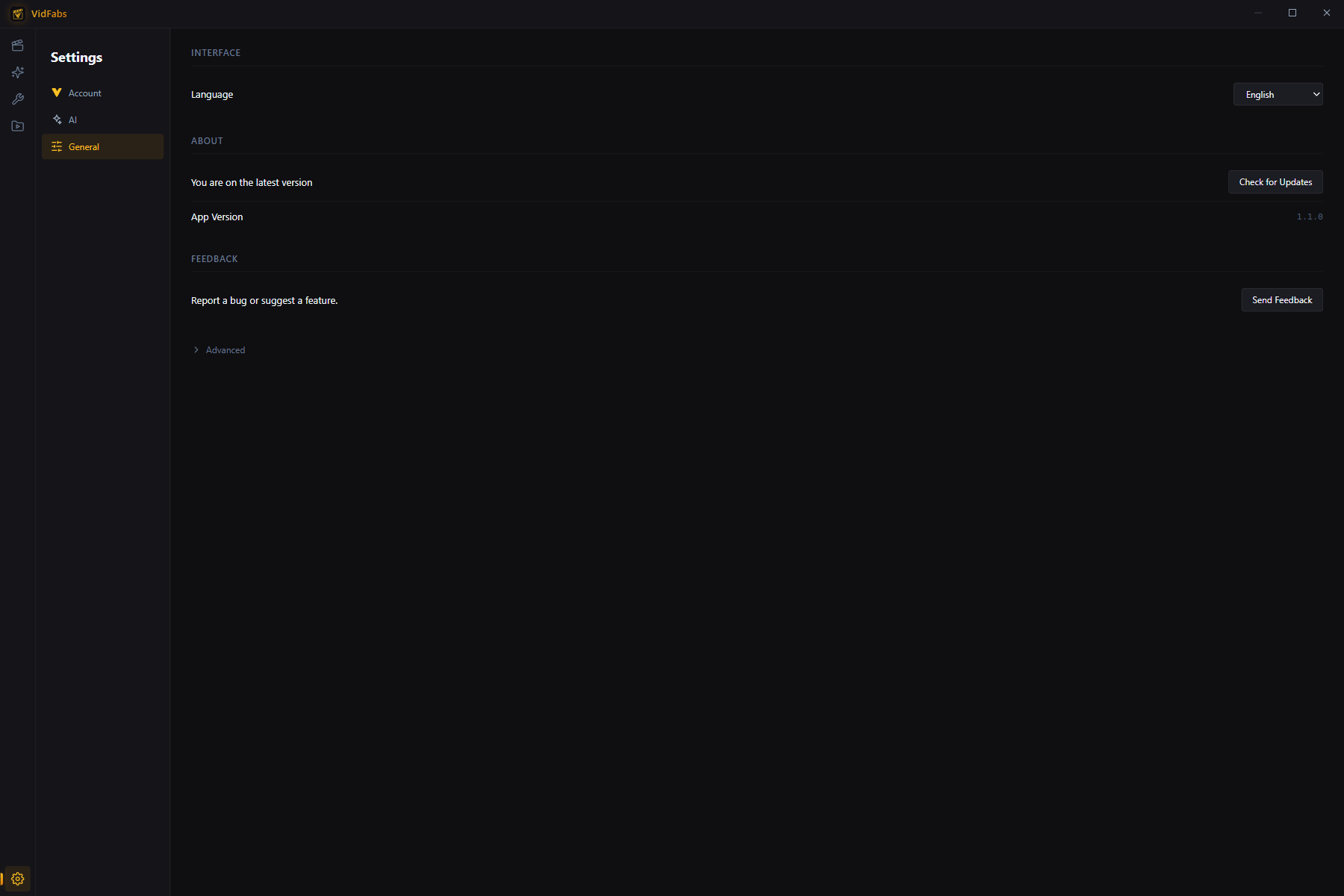
VidFabs ships with 9 interface languages: English, 简体中文, 繁體中文, 日本語, 한국어, Español, Français, Русский, Tiếng Việt.
Open Settings → General → Language and pick yours — the change applies instantly.
Activate VIP (optional)
The free tier includes the full editor and all 12 toolbox tools, with exports up to 1080p H.264 at Standard quality. VIP unlocks AI Clips, H.265 encoding, 1440p/4K export, and the High/Max quality presets.
- Purchase a plan (Monthly / Yearly / Lifetime) on vidfabs.com.
- Your license key (
PVF-…) arrives by email. - In Settings → Account, paste the key and click Activate.
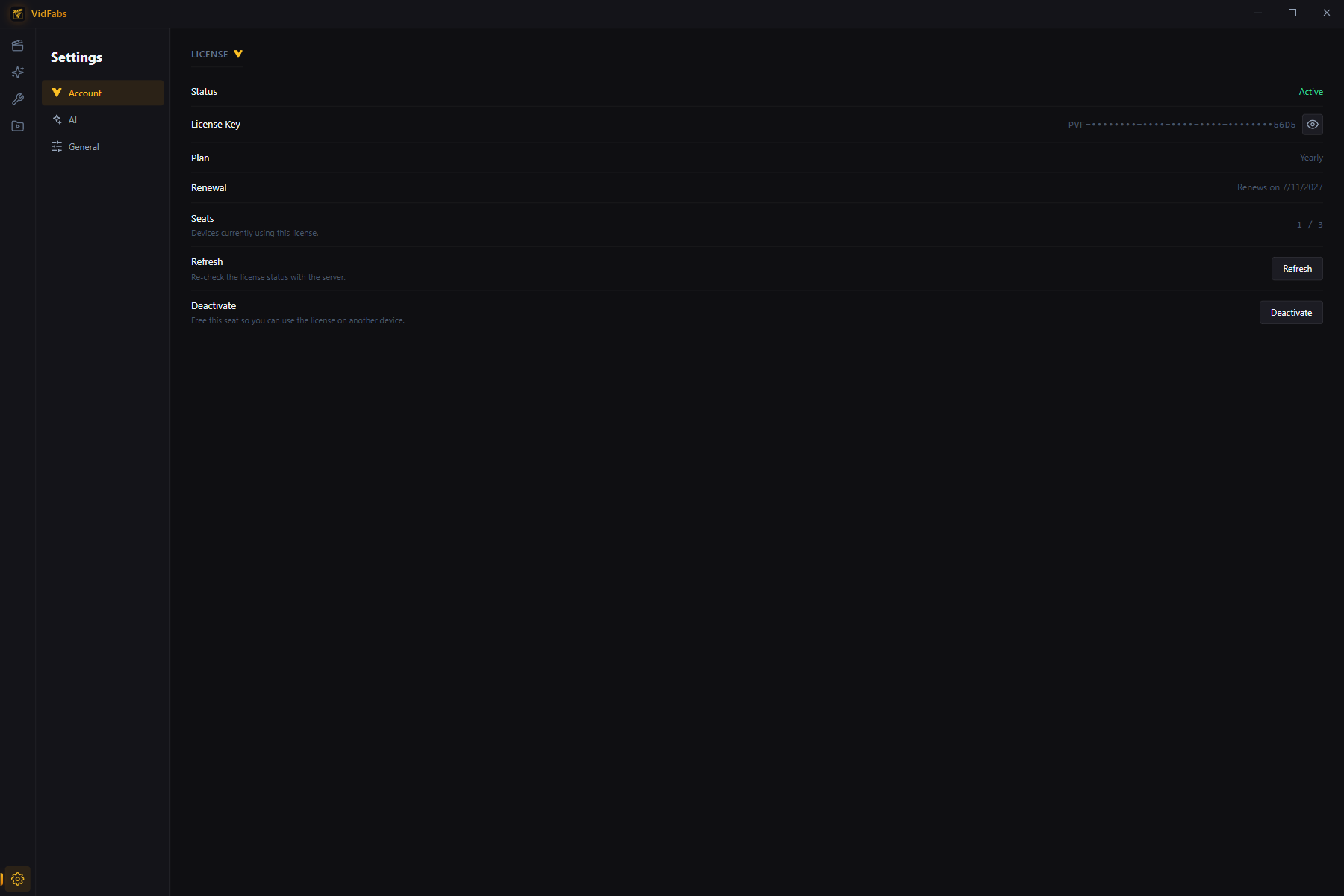
A license covers a fixed number of device seats. Moving to a new machine? Click Deactivate on the old one first to free the seat.
Staying up to date
VidFabs checks for updates automatically shortly after startup. You can also check manually in Settings → General → Update; updates download in-app and install on restart.
Notes
- All processing (convert, trim, subtitles, export…) runs through the bundled FFmpeg engine on your CPU — no internet connection is needed for editing.
- The only feature that talks to an external API is AI Clips, which uses your own OpenAI-compatible LLM key to pick highlights (see the AI Clips guide).